House Keeping In The Cluster Aware Updating GUI

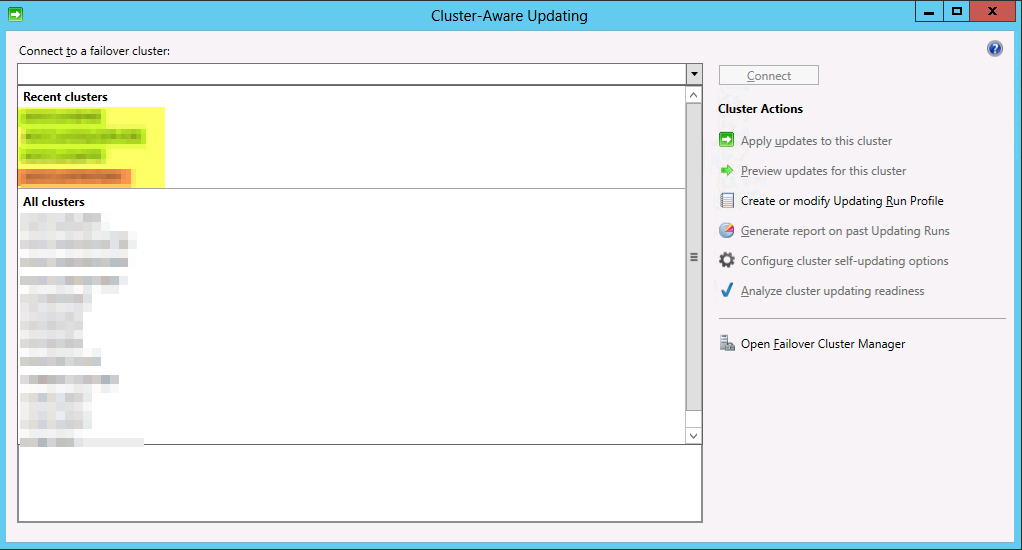
When you work in an environment with multiple clusters and some of them are replaced, destroyed etc, you’ll end up with stale clusters in the “Recent Clusters” list of the Cluster Aware Updating GUI. In the example below the red entry (had to obfuscate, sorry) is a no longer existing cluster but it’s very similar to a new one that was created to fix a naming standard error. So we’d like to get rid of those to prevent mistakes and cluttering up the GUI with irrelevant information.image

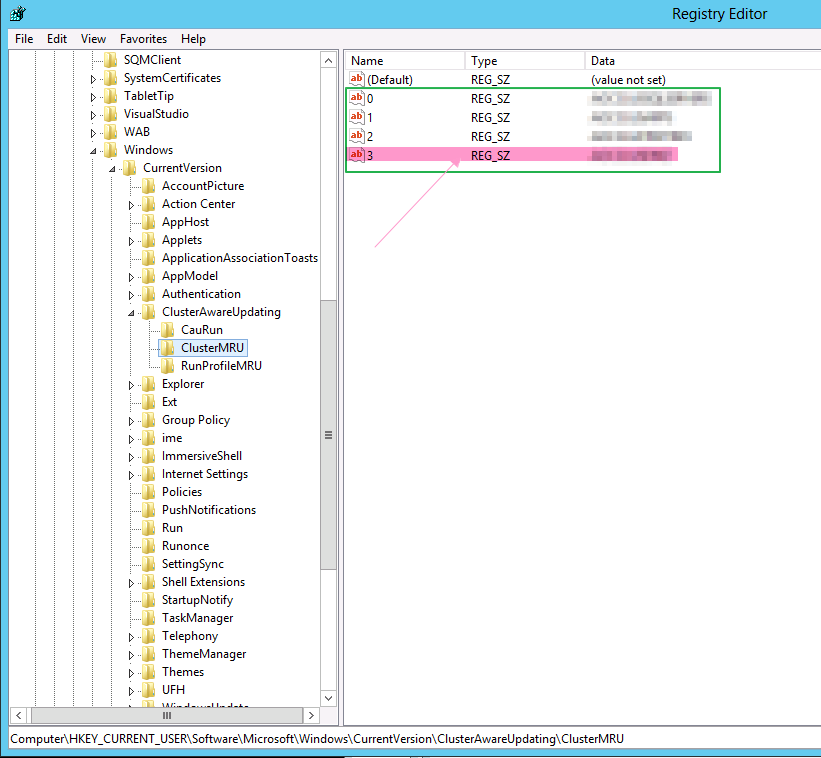
The Recent Cluster list is tied to your user profile and you can end up with a list polluted with stale entries of no longer existing clusters. To clean them out you can dive into the registry and navigate to:

HKEY_CURRENT_USERSoftwareMicrosoftWindowsCurrentVersionClusterAwareUpdatingClusterMRUimage

Simply delete the entries that contain the values of the old cluster that are no longer in existence.

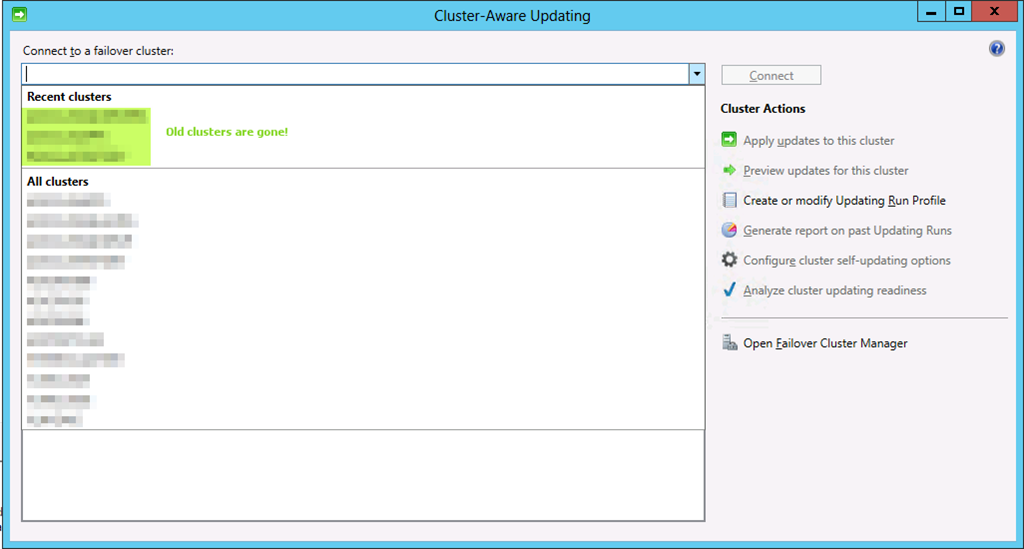
Close the Cluster Aware Updating GUI it still open and reopen it. You’ll see the stale entries to the one or more no longer exiting clusters in “Recent Clusters” is gone.image

Live Migration over NIC Team in Switch Independent Mode With Dynamic Load Balancing & Compression in Windows Server 2012 R2

In a previous blog post Live Migration over NIC Team in Switch Independent Mode With Dynamic Load Balancing & TCP/IP in Windows Server 2012 R2 we looked at what Dynamic load balancing mode in NIC teaming can do for us . Especially in a switch independent configuration as until now there was no possibility to leverage the complete bandwidth provided by the NIC team when migrating between only 2 nodes. I that blog we used TCP/IP. Now we’ll configure Compression and see what that does for us.

So we set up a NIC team in switch independent mode with Dynamic load balancing, it’s identical as that one used for the tests with TCP/IP.

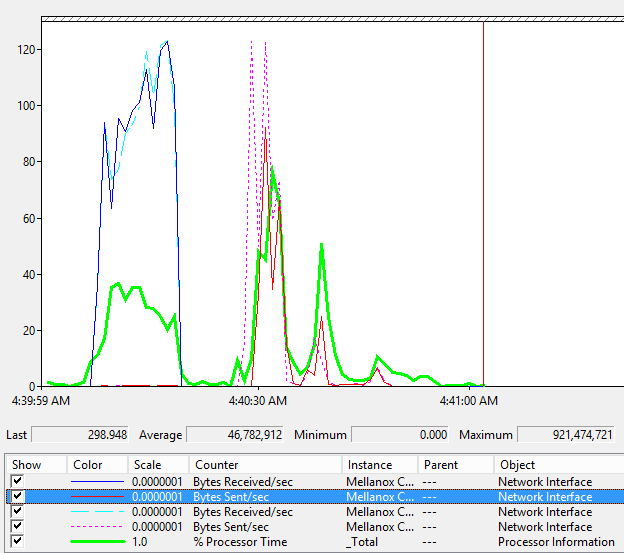
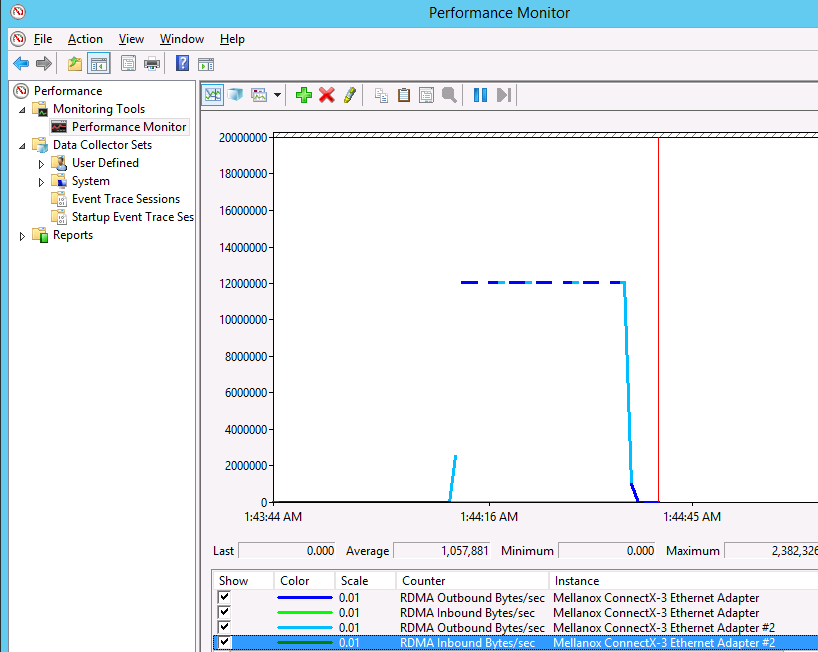
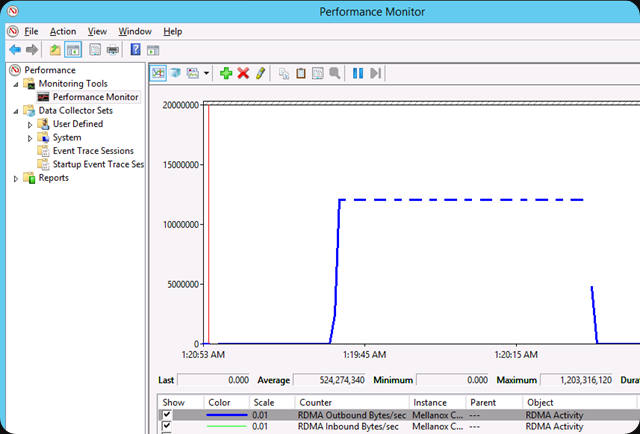
Compression basically slashes the live migration times in half at a cost. CPU cycles.And again with Dynamic load balancing we can now also use all member of a NIC team for live migration even in switch independent mode. The speeds for live migrating 6 VMs  with 9GB of memory simultaneously were 12-14 seconds.

image

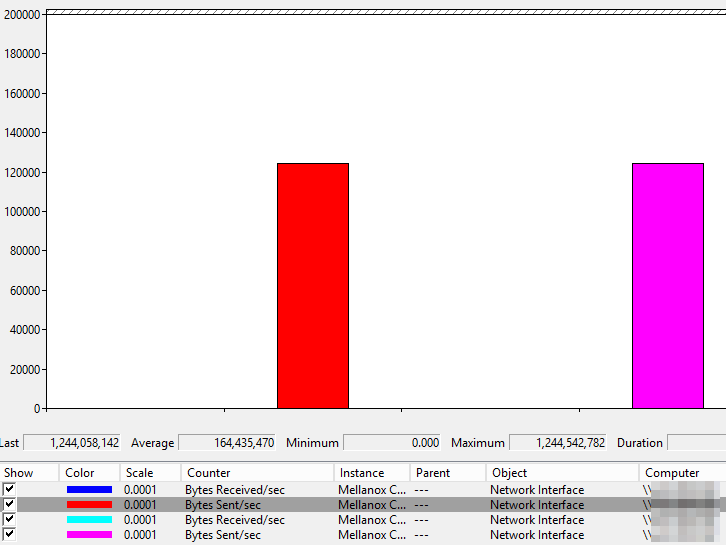
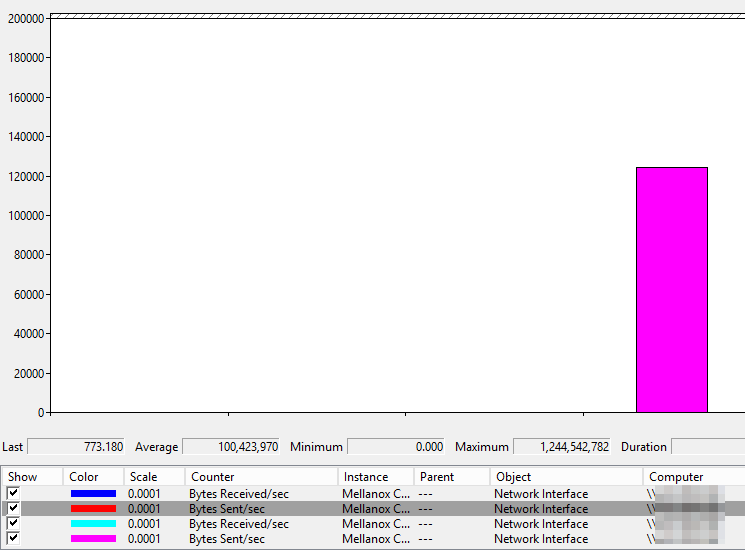
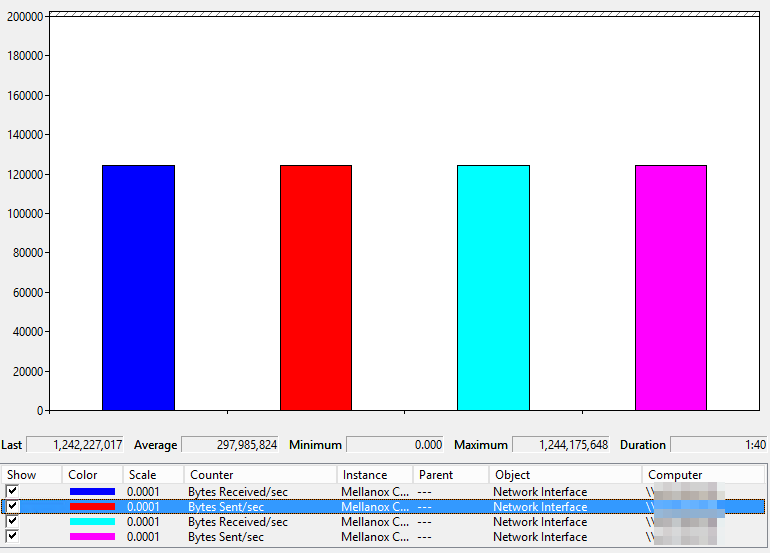
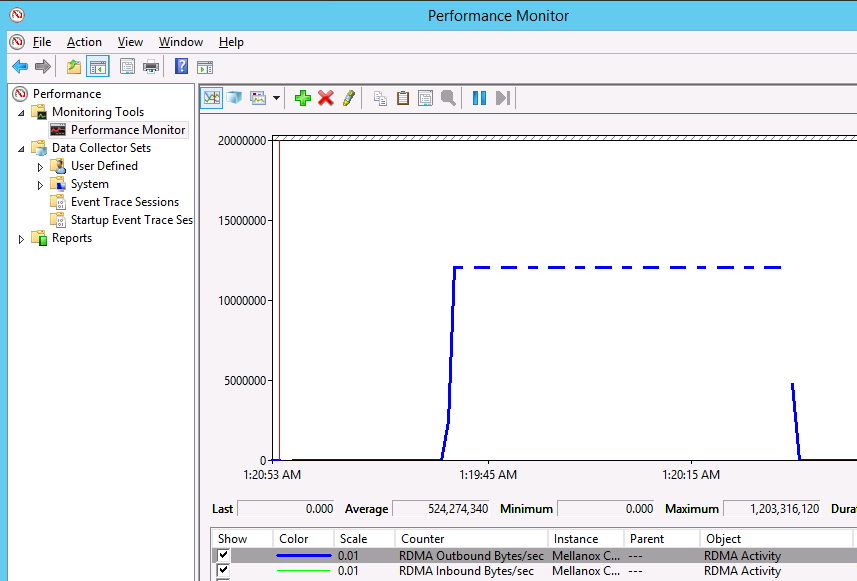
Take a look at the screen shot above. You see 6 VMs coming in to the host where these counters are collected and after that you see them being live migrated away from the host. As we have plenty of idle cycles I this test lab they get used, both when being the target and the source of the VMs being live migrated. You can also see that a lot less bandwidth is needed to achieve a faster live migration experience (compared to TCP/IP).

By the looks of it the extra bandwidth will help out when we have less CPU and vice versa. This is both the case for a single NIC or teamed NICs. Do note that you cannot combine compression with Multichannel. That means that the only scenario allowing for multiple NICs to be used with compression is NIC teaming. When you have a bunch  of free 1Gbps NICs in surplus this might get things moving for you!

Interesting stuff. I’m really looking forward to the moment we can run production loads on these configurations …

Live Migration over NIC Team in Switch Independent Mode With Dynamic Load Balancing & TCP/IP in Windows Server 2012 R2

As you can imagine I was quite interested in seeing what the new Dynamic load balancing mode in NIC teaming can do for us. Especially in a switch independent configuration as until now there was no possibility to leverage the complete bandwidth provided by the NIC team when migrating between only 2 nodes.

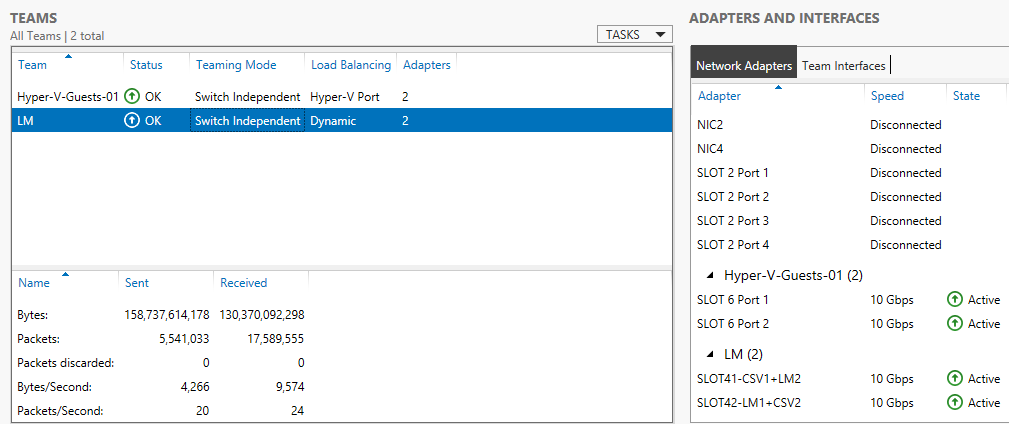
So we set up  a NIC team in switch independent mode with Dynamic load balancing. Here’s a screenshot of the NIC team setup. LM is the NIC team I’m using for some live migration testing.image

For these tests we used TCP/IP to do the live migrations. I’ll be sharing the compression & Multichannel performance option results in a later blog and do some comparisons. But for now I can inform you that with Dynamic load balancing we can now also use all member of a NIC team for live migration even in switch independent mode. I’m a fan of switch independent mode. Now possibly even more. Speeds for live migrating 6 VMs simultaneously with 9GB of memory were 28-30 seconds.image

image

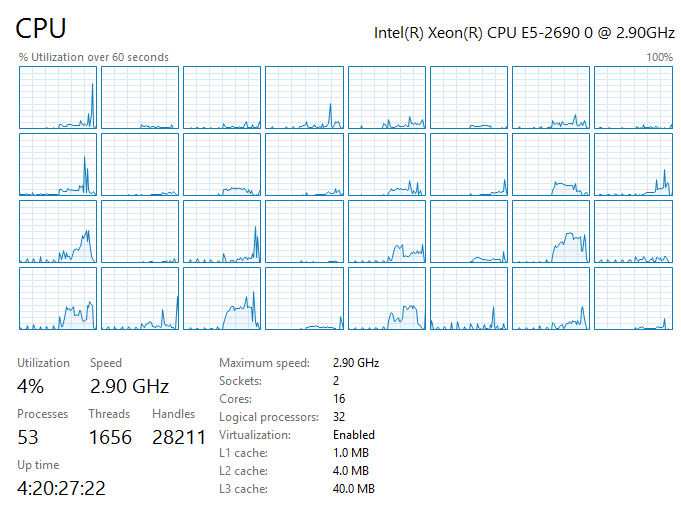
The CPU load not very low but RSS does it’s job to spread it out.image

image

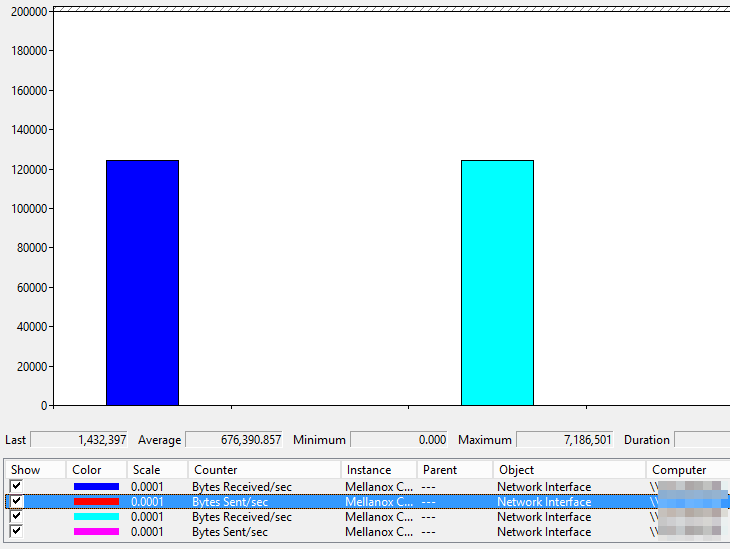
Now the beauty of al this is that this had no negative impact due to out of order packets. For one a single live migration sticks to a single team member. Here’s a screenshot of a single VM live migrated over a NIC Team with Dynamic load balancing.image

image

As you can see there will not be out of order packets in this case.

Secondly the Dynamic load balancing mode is based on the “flowlets”. This means that the impact due to out or order /reordering of TCP/IP packets is minimal.

I also refer you to the following article Dynamic Load Balancing Without Packet Reordering.The conclusion is quite interesting:

We have introduced the concept of flowlet-switching and developed an algorithm which utilizes flowlets in traffic splitting. Our work reveals several interesting conclusions. First,highly accurate traffic splitting can be implemented with little to no impact on TCP packet reordering and with negligible state overhead. Next, flowlets can be used to make load balancing more responsive, and thus help enable a new generation of real-time adaptive traffic engineering. Finally, the existence and usefulness of flowlets show that TCP burstiness is not necessarily a bad thing, and can in fact be used advantageously.

And now as a show closer let’s do live migrations between both hosts in both directions.image

Speed people, in live migration is a thing of beauty. Microsoft is really providing us with lots of options. This is good. We can use what’s available, where available, when available and make sure we get the best possible solution and performance whatever the environment and budget.

Preliminary Results With Live Migration Over RDMA Speed & Useful Number Of NICs

Introduction

With Windows Server 2012 R2 (Preview) we can leverage SMB to do Live Migrations. That means we can now offload the process to the NIC if they support RDMA, save on CPU cycles and potentially get VMs moves a lot faster without impacting the performance of running VMs on the involved hosts. Perhaps it’s even faster than over TCP/IP. Sounds great so let’s do some testing.

  • We have a dual port 10Gbps Mellanox RDMA card (RoCE) in each host. One pair of the ports are interconnected via a direct attach cable. The other one is connected over a Force10 S4810 switch. We’re using in box Windows Server 2012 R2 preview drivers for everything as we have found drivers not to install properly (or not at all) on this release and cause issues.
  • We are using one VM running Windows 2012 RTM with upgraded Integration Services components. This VM has 4 vCPUs and 55GB of fixed memory assigned. For this purpose we had no workload running in the VM. The servers are standard DELL PowerEdge R720 kit running the Windows Server 2012 Preview bits.

Results

No Performance tweaking

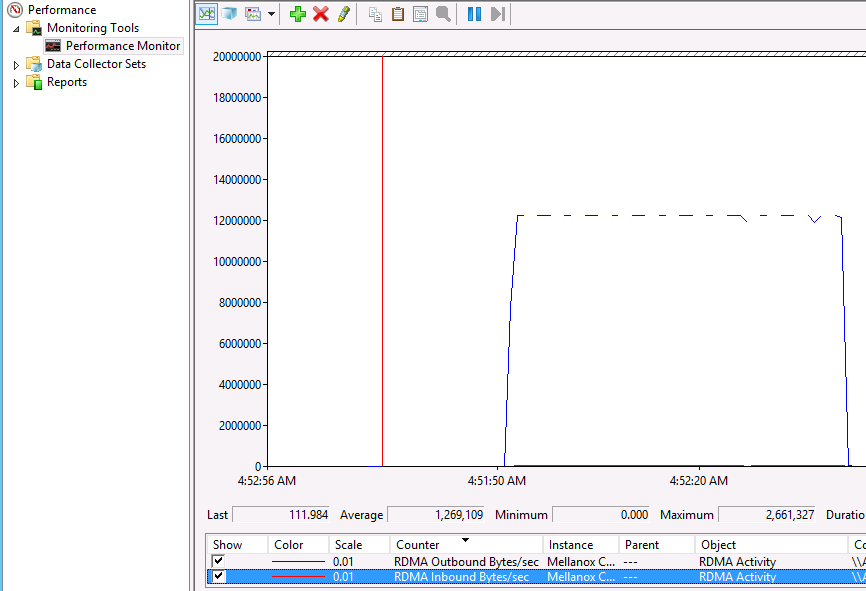
Live Migration over RDMA in action. Here we are using 1 10Gbps RoCE RDMA NIC. Here we are moving via the NIC port that goes over the S4810 Switch.image
As you can see the entire process took 74 seconds. RDMA did not kick in until after 19 seconds had past since the start.

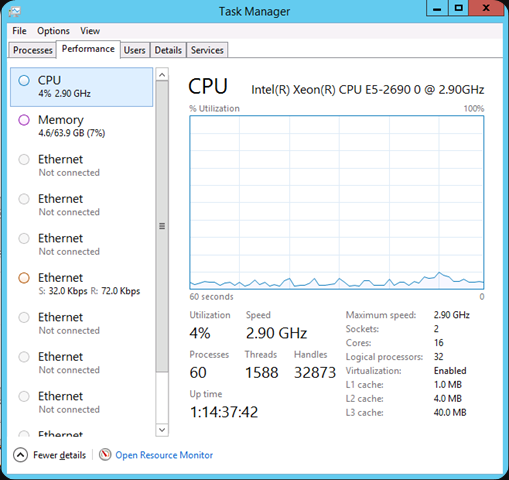
The CPU load remains low, which is where you’ll find the biggest benefit of RDMA  with live migrations.image
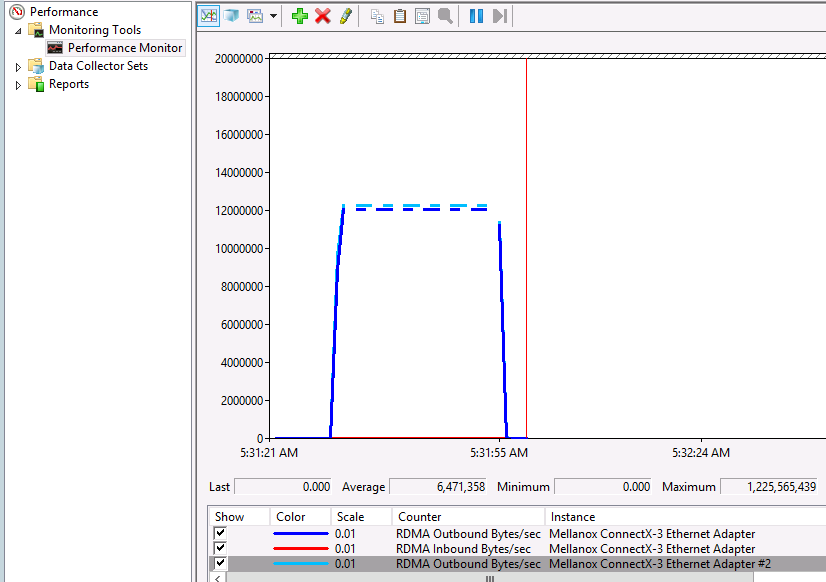
No let’s put two RDMA RoCE ports into play and see what that does for us. We now Live Migrate the 55GB memory VM in 52-54 seconds. Not bad. Again we saw over 20 seconds time pass before RDMA kicks in.image
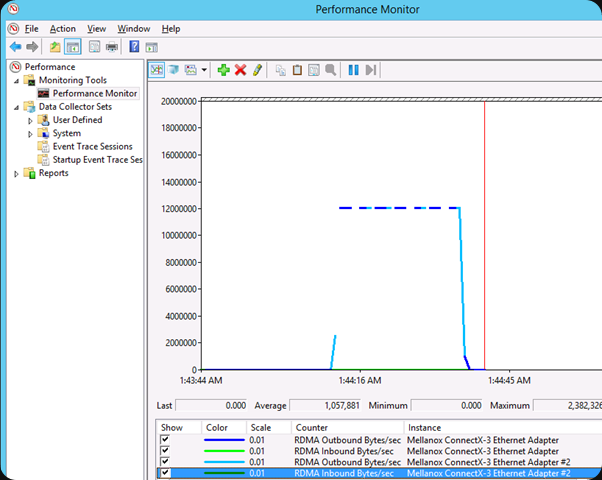
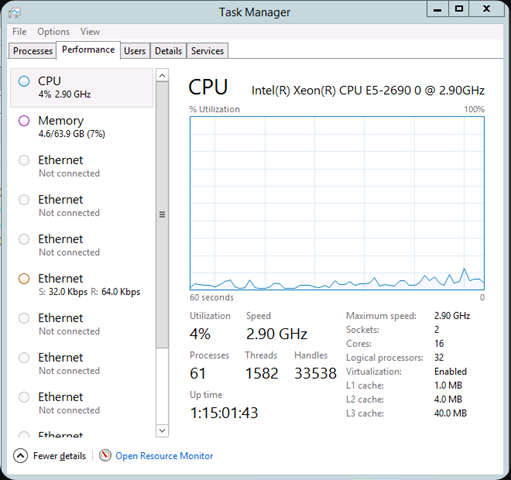
Again we see that CPU usage remains low. This is just a quick screenshot. On a hyper-V node you’ll need to dive into Performance Monitor to get some real info.image
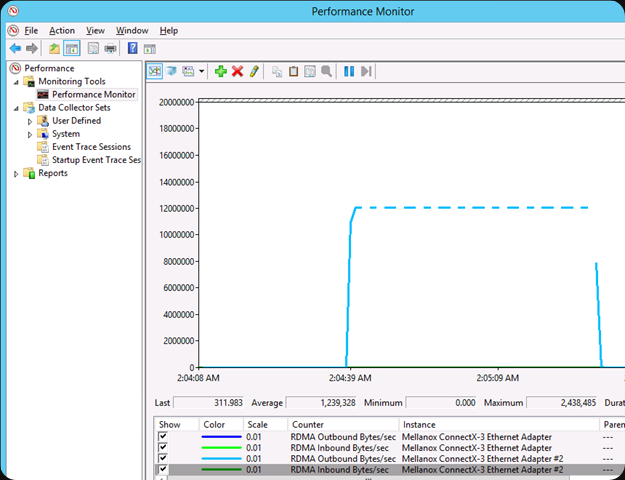
Let’s repeat this exercise and see what happens if we move the traffic over the NOC ports that are directly attached. That will give us an indication about the configuration of the switch. Configuring RoCE DCB  features like PFC/ETS is not exactly a well documented process at the moment and often I feel like a magician’s apprentice.

Once more we see that it takes about 20 seconds for RDMA to kick in and that the time rises to 79 seconds. It fluctuates between 74-79 seconds actually?
image

The CPU load was low again. So both paths seem to perform comparable.

Live Migrations over SMB seem to function faster using two RDMA ports  but not twice as fast. These are the preview bits so nothing definitive yet. And sorry, I cannot do 40Gbps or 56Gbps Infiniband tests. Unless you want to donate the gear and pay for the power, time  & reporting Open-mouthed smile.

Max Performance Tweaking

As my readers very well know I tweak my nodes for best performance. The savings of energy (power, cooling) have to come from making the most out of every node and shutting them down when not needed (Dynamic Optimization/Power Optimization in System Center). I still have a standing order to tale away any physical limitations possible for the business.

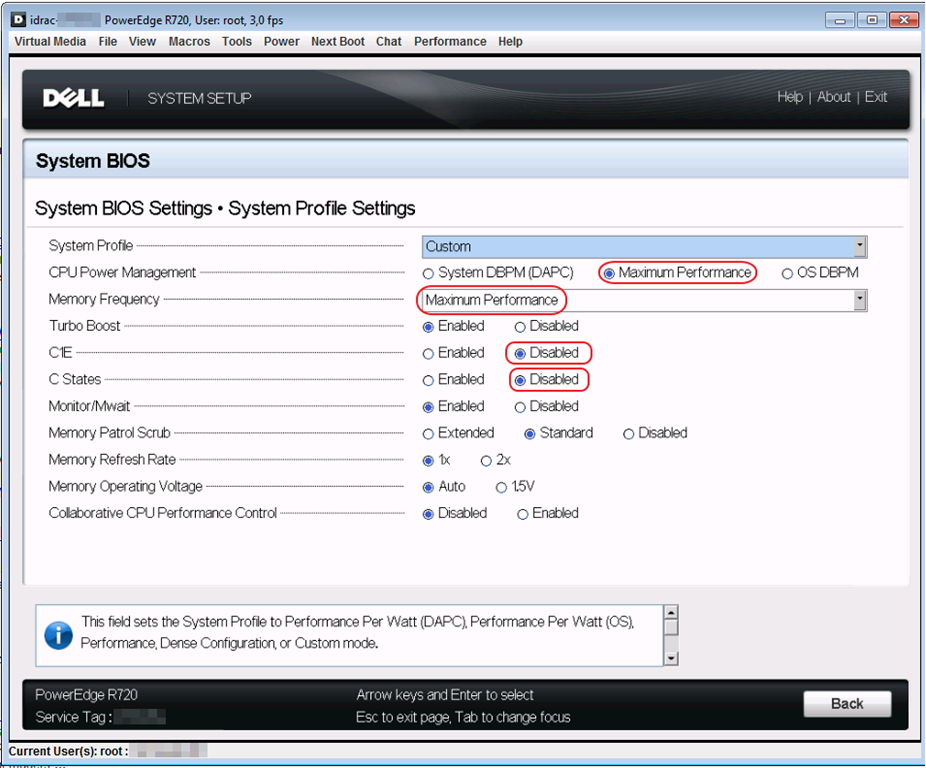
While Windows Server 2012 (R2) has made tremendous strides to better use of the available bandwidth of a 10Gbps pipes out of the box I still dive in to the BIOS to turn of the C/C1E states and set the CPU Power Management and Memory Frequency to Maximum performance. Have a look at this blog post Still Need To Optimizing Power Settings On DELL 12th Generation Servers For Lightning Fast Hyper-V Live Migrations? on how to do this with DELL Generation 12 Servers. It also contains a  link to the older generations guidance.

As you can imagine I was quite interested to see if the settings effect RDMA as well. So let’s have a look with these settings here:
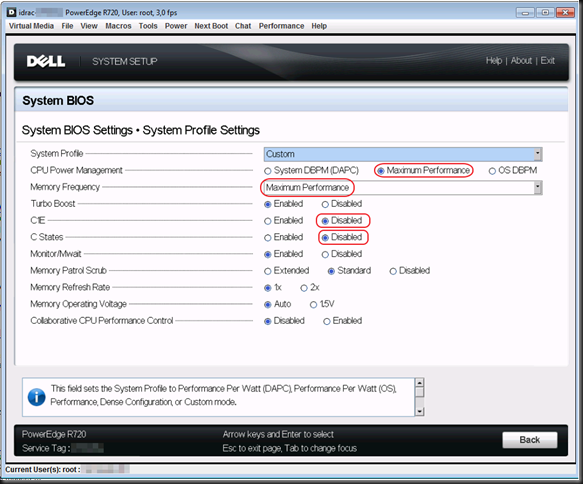
image

One RDMA NIC used (Mellanox, RoCE, 10Gbps)image
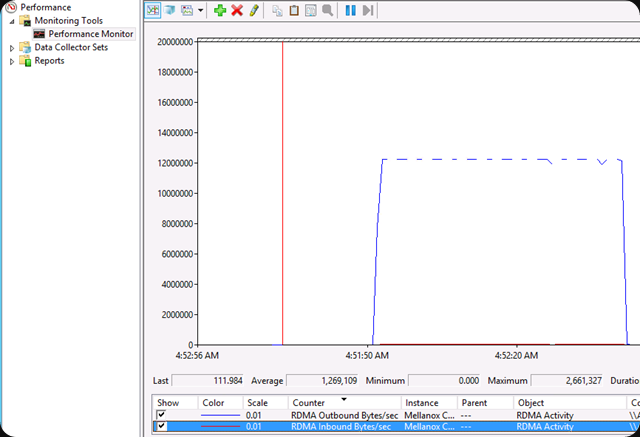
54 seconds for that 55GB memory (fixed) VM. We also note that the delay of 19-20 seconds before RDMA kicks in has dropped to 3-4 seconds, which is quite interesting. Basically this makes it as fast as 2 RDMA NICs without performance tweaking.

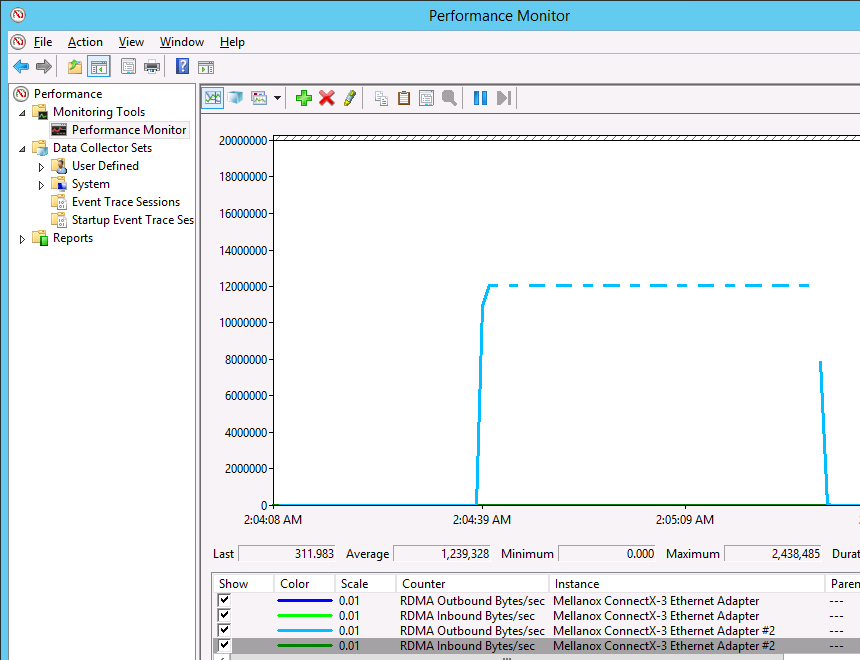
Two RDMA NICs used (Mellanox, RoCE, 10Gbps)image
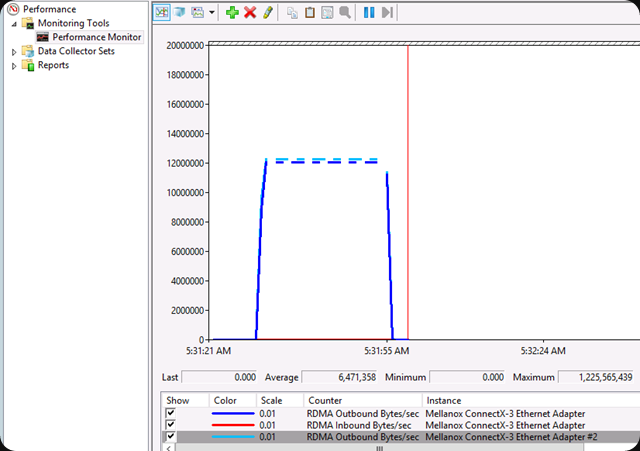
30 seconds flat, in a repetitive manner, for that 55GB memory (fixed) VM. Again we note that the delay of 19-20 seconds before RDMA kicks in is again 3-4 seconds. So this is about 45% better than without the power optimization.

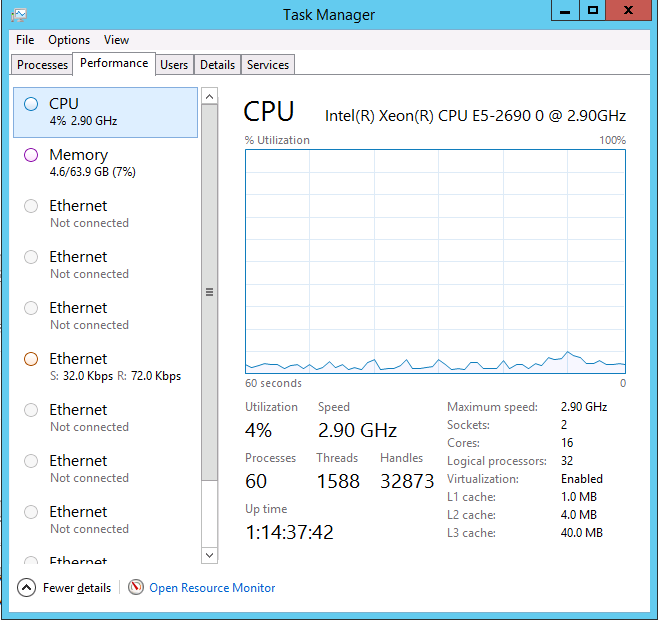
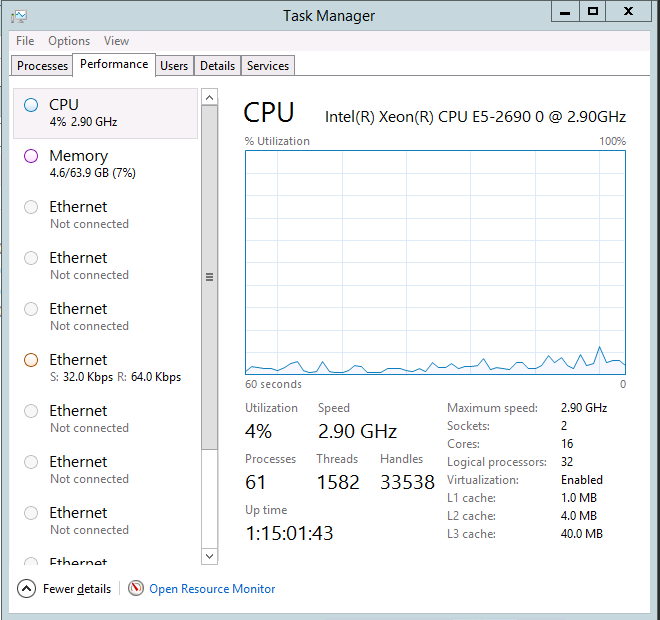
What is the CPU doing during all this? Well taking care of the VM load, not spending it on network interrupts Smile. Again, this is a quick screenshot. On a hyper-V node you’ll need to dive into Performance Monitor to get some real info.image
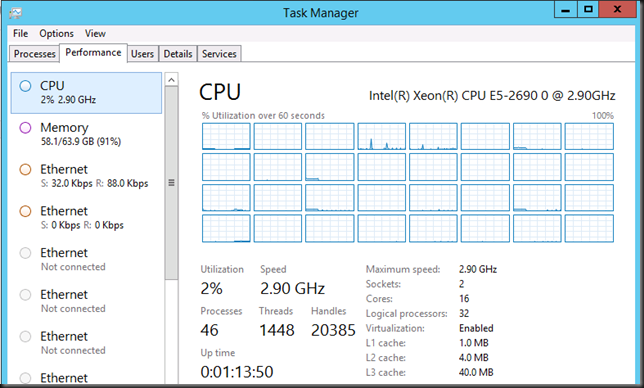
By now you must all be eager to see how this compares against Live Migration over TCP/IP, Multichannel and with Compression. That’s material for other blogs.

Why am I doing this?

We need to get the most out of every € or $ we spent. It’s not that we don’t have any cash left or so but why buy more servers & higher end gear to get better results when the answer lies in the correct configuration & better choices when designing a solution. It’s going to be a while before this knowledge becomes main stream and widely available. Years probably and why wait. It takes time to experiment but the results & ROI are great. Why spend another 50.000 to another 100.000 Euro on Servers, 10Gbps cards & switch ports if you don’t need to?  Count the cost to host, power & cool them and you’ll see that this time is an investment. You could also conclude to leverage the cloud but wasting VM cycles there is also money you have better uses for, so testing will also be needed.