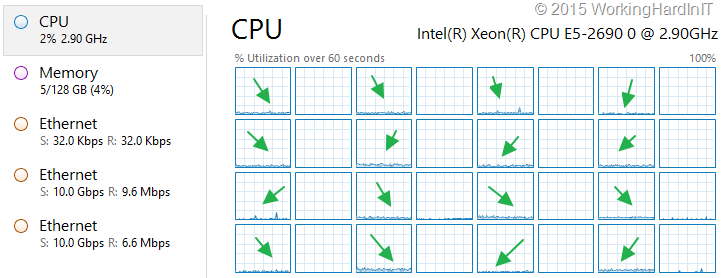
A question that comes up over time, again and again, is how do you know SMB Direct is working. The question stems from a nagging feeling that configuring DCB is a bit of playing wizard’s apprentice and we might not completely know what we’re doing, i.e. lack of experience.

Many have suspected me of brewing up DCB configurations in a dark corner of the data center where no one else dares venture. But those are unsubstantiated rumors. But in coming blog posts we’ll address how to configure it end to end and we’ll show how to find out if it’s really working and how to test that.
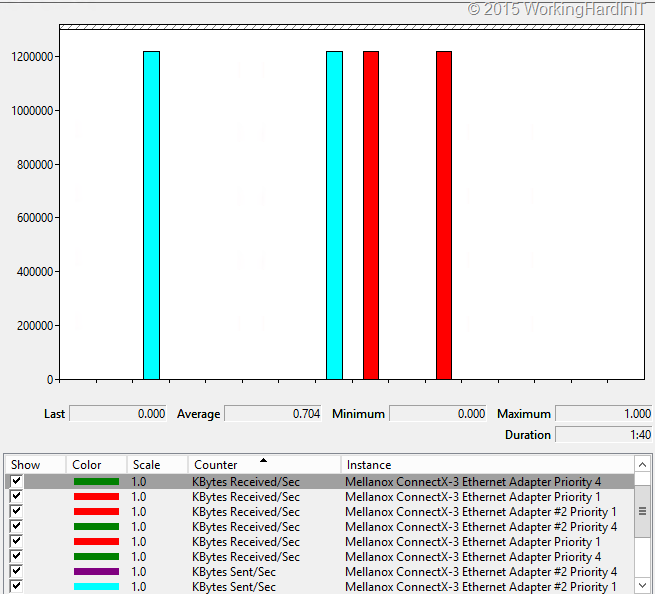
Finding out if it really works, testing and monitoring isn’t magic. It boils down to using tools you know. Performance counters for RDMA Activity and SMB direct are natively available in Windows. Use them!The NIC vendors also provide very detailed counters, those are excellent and of great value when testing and confirming things work as they should. The latter is very important. Because after people are satisfied SMB Direct works they want to know if DCB is configured correctly. Does PFC work, are pause frames being send and received? Is it really lossless? Does ETS really kick in when needed, do I get the minimum bandwidth I configured? These are very valid questions people struggle with. But the answer eludes many, almost like the question if the refrigerator light really goes out when you close the door.
It’s hard to do deep down in the network packets … that often requires a very specialized skillset and experience with packet analyzers etc. Nothing most of you can’t learn but often this is not a priority. But with some creativity and the performance counters on windows provided by the NIC vendors and the statistics counters on the switches you can demonstrate that both PFC & ETS doe work and kick in.
So in upcoming blogs & videos I’ll demonstrate the configuring SMB Direct over RoCE leveraging 2 parts of DCB:
- PFC (Priority Flow Control) – mandatory for SMB Direct over RoCE
- ETS (Enhanced Transmission Selection) – optional but I advise you to leveraged it for SMB Direct over RoCE
Actually, when doing true converged, no matter what route you go, QoS is not really optional any more.
The biggest challenge is to get people to wrap their heads around the concepts and it’s behavior. Once you do that you’ll understand how and why to configure it. It took me time and effort, there’s no way around it, but it’s well worth the effort.
Look, DCB is not 100% fully matured or perfect especially in large scale environments over > 2 or 3 hops. Frak, while I love tinkering, testing and playing with this stuff I have never been a “QoS first person”. If I can I thrown resources at the problem (CPU cycles; memory, bandwidth, …). QoS is like a gun. You only draw it when you must use it and than you’d better do it right otherwise you don’t touch it, bar for practice/training/ education. While perfection is not of this world and improvements are being worked on (ECN) it does work and deliver. How many of you had a large scale > 2 hops , > 20 switches deployment with FC, FCoE or iSCSI to worry about? So can it deliver what you need today in most scenarios? Yes! Can I fix the short comings of any random technologies? No. Can I leverage current technologies with great success despite this? Yes! So can you. There is a reason I get hired and paid. Trust me it’s not my looks, my bed side manner or charismatic appearance  .
.
Side note 1: I’m cannot possibly provide a switch configuration guide in a step by step fashion as the details vary by vendor, they can also be switch model/type specific and it all depends on your environment & needs. So no I cannot and will not attempt to write a bunch of these. This would be way too much work and way too expensive (time, hardware etc.), so unless I’m paid very generously to do so, you’re out of luck. It might be cheaper to hire me or to come to the free community sessions, presentations, ATE evenings and study up.
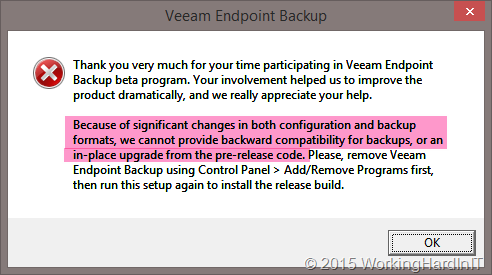
 . Mind you, there’s no way to do an in place upgrade either but it can read the backups made by the RC version!