An Early Look At Live Migration Over TCP/IP & Multichannel In Windows Server 2012 R2 Preview

Introduction

With Windows Server 2012 R2 (Preview) we can Live Migrations over TCP/IP like before. That’s either using a single NIC or by teaming two or more NICs. We also have compression and Multichannel. In this blog post we’ll play with TCP/IP and Multichannel.

  • We have a dual port 10Gbps Mellanox RDMA card (RoCE) in each host. But for these tests we have disable the RDMA capabilities of these NICs. As in the RMDA blog post, one pair of the ports are interconnected via a direct attach cable. The other one is connected over a Force10 S4810 switch. We’re using in box Windows Server 2012 R2 preview drivers for everything as we have found drivers not to install properly (or not at all) on this release and cause issues.
  • We are using one VM running Windows 2012 RTM with upgraded Integration Services components. This VM has 4 vCPUs and 55GB of fixed memory assigned. For this purpose we had no workload running in the VM. The servers are standard DELL PowerEdge R720 kit running the Windows Server 2012 Preview bits.

Results

No Performance tweaking

We test a a Live Migration over one 10Gbps NIC. It’s fast but I don’t like the jig saw effect and we don’t push the bandwidth to the limit yet.image
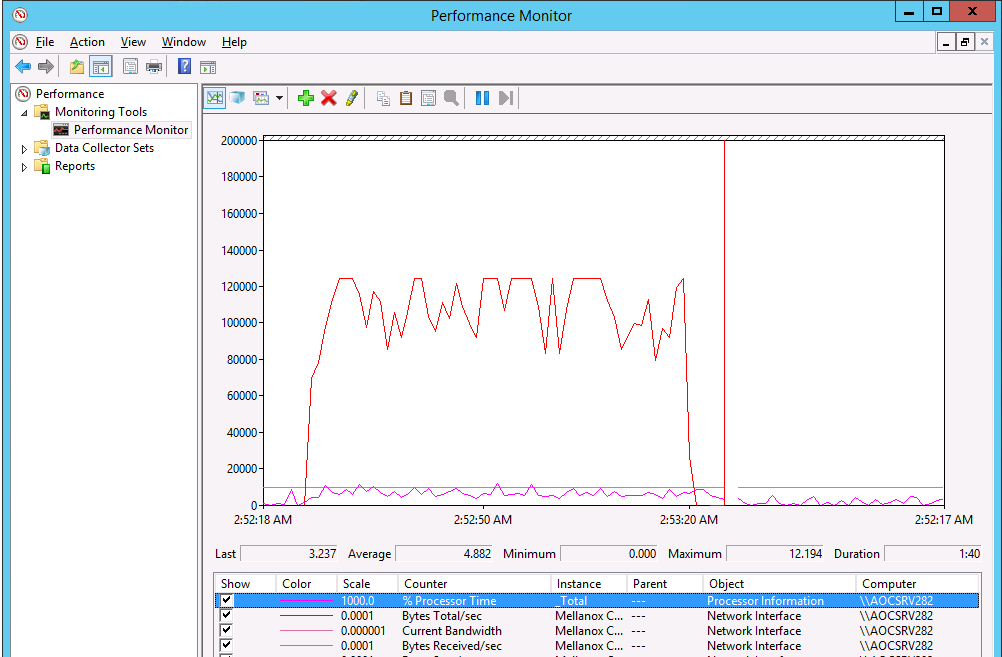
We can move the 55GB Memory VM in about 70 seconds on average. You have a bit more CPU load here but nothing to bad. Most often the Hyper-V host has ample of CPU cycles left so this will not hinder performance. I also remember Aidan Finn’s work testing a truck load of concurrent live migrations with a host that has only 1 low end CPU with 4 cores making it throttle the number of CPUs it would start to save guard the workload.
image

So let’s do what we’ve always done. Turn on Jumbo Frames. This helps to peek to 1.25GB/s and improves speeds (10% or more) but the jig saw is still a bit visible. As I think we can do better we move in the big guns and we optimize our power setting as discussed in Still Need To Optimizing Power Settings On DELL 12th Generation Servers For Lightning Fast Hyper-V Live Migrations? and  Optimizing Live Migrations with a 10Gbps Network in a Hyper-V Cluster. Now with C & C1E states disabled and both processor & memory optimized for performance we see this.image
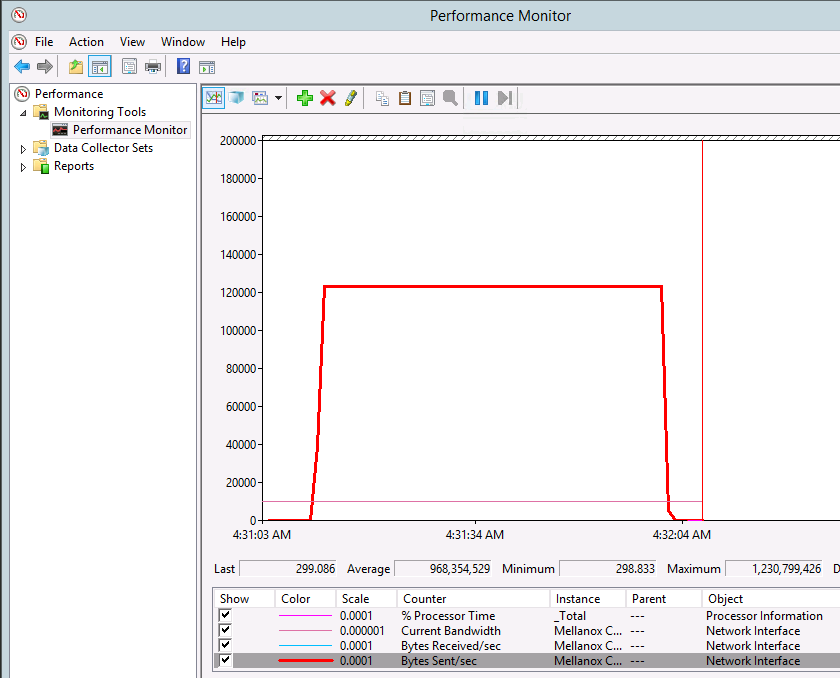
Now that’s power. We have faster Live Migrations (54 seconds on average) with top bandwidth use during the entire migration process and we see 50% better blackout times. What’s not to like here? CPU usage isn’t that bad and you’ll likely have some cycles to spare unless you’re over 60-70% of CPU use by your VMs and then you need to fix that anyway Smile as you’re out of the save zone. So, Jumbo Frames & Power Optimization are key!

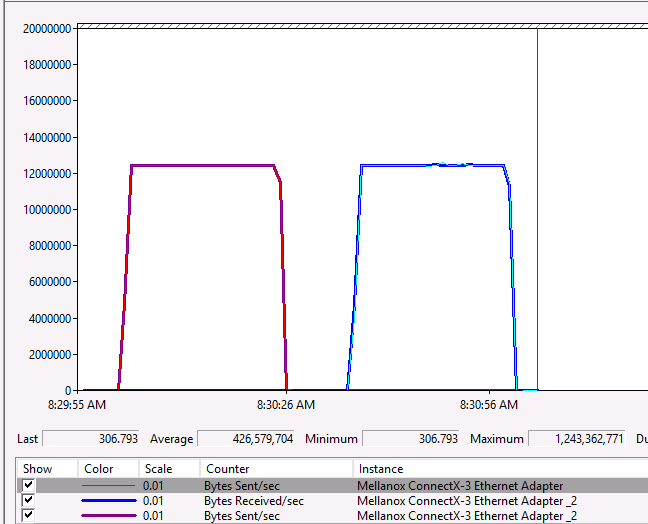
Of cause we’re always looking for better and more. In Live Migrations terms that means speed. So let’s see what Multichannel can do for us. So let’s switch to SMB. As we have disable RDMA on the NICs this “only” gives us multichannel. The cool thing is, the second NIC doesn’t have Jumbo frames enabled yet. I have always found Jumbo Frames to matter and now with multichannel I have a very nice way of demonstrating  / visualizing this. Here’s a screen shot of moving our test VM back and forward. As you can see we have one NIC with Jumbo frames disabled and one with Jumbo frames enabled. You don’t have to guess which one is which I guess. Yup Jumbo frames do matter Smile When you push to the limits. We are getting about 31 seconds on average here with the 55GB VM.

image

Here’s the same with Jumbo Frames enabled on both NICs. And guess what we just cut another 3 seconds of the Live Migration time Smile. 28 seconds flat.

image

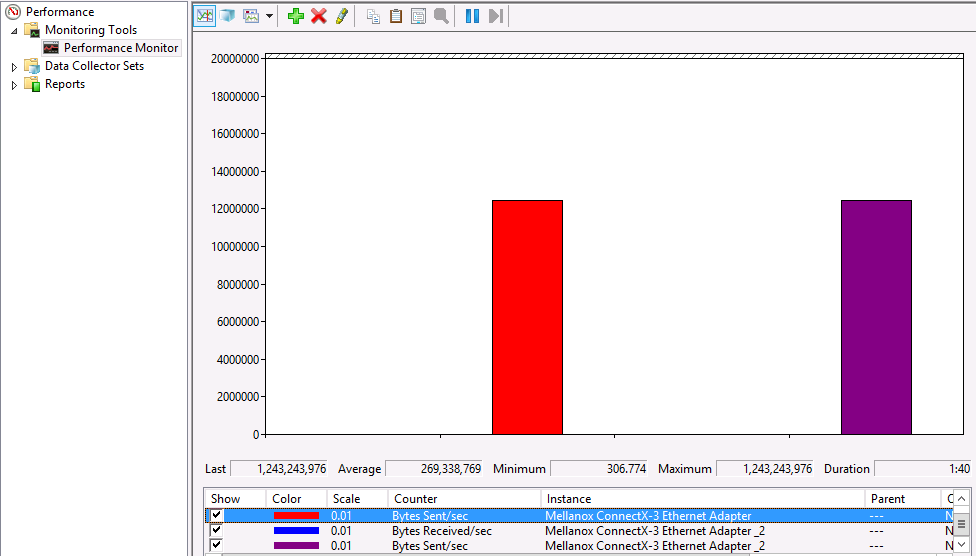
In a histogram it looks like this. That’s what maximum throughput looks like.image
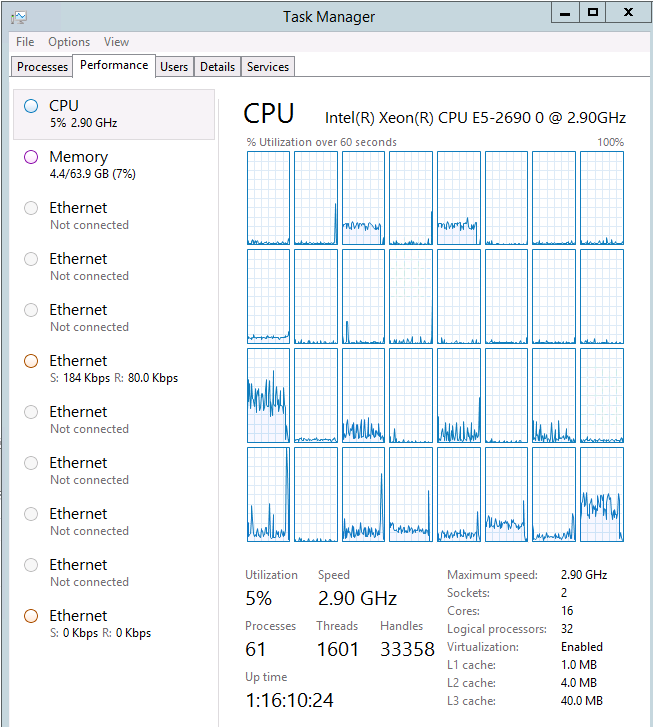
Let’s see what our CPUs are up to during all this. Some core are rather busy dealing with the interrupts. But this is just one VM.image
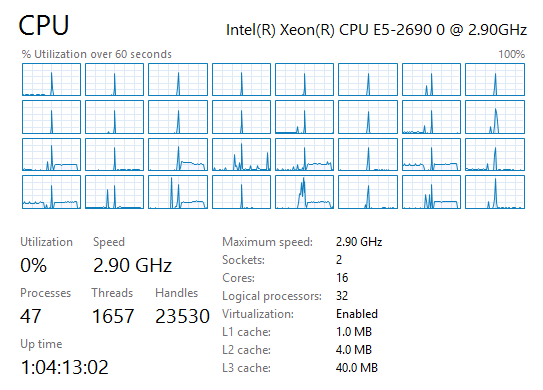
If you wonder why with 2*10Gbps you only see 2*4 CPUs doing work while the default RSS queues are at 8  and you’d expect 16. It’s because Multichannel defaults to 4. So we get 8. This I configurable and testing will show what difference this could make and whether it’s wise to tweak. It all depends.

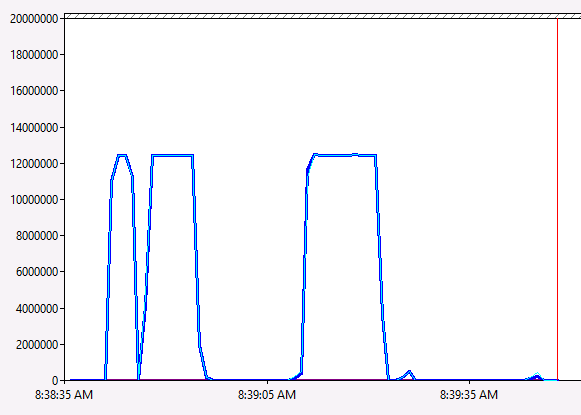
Sure this is only one large memory VM but what if we do more? Like 6 VMs with 9GB of memory. Not to bad. image
image

What if that host is running  30 or 40 VMs? That adds up. Well that’s what RDMA is for Smile! But that yet another blog post.

Do keep in mind this is al just the Preview bits … MSFT does two things now until R2 is released. They kill bugs and tweak for speed. I tune my Live Migration setting in production so that get the most bang for the buck I try to avoid dips in bandwidth like you see above. So the work is not finished yet Smile

Conclusion

I can conclude that all the hints & tips of the past to optimize Live Migration still hold true. Yes, you should enable Jumbo Frames and yes you should still optimize your host for performance over power savings. That said, the times that you’d only get 16% of bandwidth usage out of a 10Gbps NIC when you do power optimize have long gone ever since Windows Server 2012. But if you feel the need for (even more) speed …, then by all means go for it.vlcsnap-2013-07-06-17h18m58s175

If you want to conserve energy & be environmentally sound make the most of the least number of nodes possible and use Dynamic Optimization / Power Optimization to shut them down when not needed and fire them up to rise to the occasion Smile

Oh yes, test people, test. Trust but verify and determine the best possible configuration for both your environment and needs.

Now we’ll have a look at compression  … but again that’s another blog post!

Configuring Performance Options for Live Migration In Windows Server 2012 R2 Preview

New Options For Optimizing Live Migrations

In Windows Server 2012 R2 we have a whole range of options to leverage Live Migration of our environment and needs. Next to the new default (Compression) we can now also leverage SMB 3.0 (Multichannel, RDMA) for all forms of Live Migration and not just for Shared Nothing Live Migration  (see  Shared Nothing Live Migration Leverages SMB 3.0 Under the Hood) or Storage Live Migration when both the source and the target are SMB 3.0 storage.

TCP/IP

Here you can use a one NIC or a NIC Team for bandwidth aggregation for live migration (see  Teamed NIC Live Migrations Between Two Hosts In Windows Server 2012 Do Use All Members). This is the process you have known in Windows Server 2012. You can select multiple NICs or even Teams of NICs  but only one of those (one NIC or one Team) will be used. The other(s)will only be used when the first one is not available.

Compression

This option leverages spare CPU cycles to compress the memory contents of virtual machines being migrated. Only then is it sent over the wire via TCP/IP connection. This speeds up the Live Migration Process. This process is CPU load aware so it will only use idle cycles to protect the workload on the hosts. This is the default setting in Hyper-V running on Windows Server 2012 R2 Preview.

SMB

This setting will leverage two SMB 3.0 features. Multichannel and, if supported by and for the NICs involved, RDMA.

  • SMB Direct (RDMA) will be used when the network adapters of both the source and destination servers have Remote Direct Memory Access (RDMA) capabilities enabled.
  • SMB Multichannel will automatically detect and use multiple connections when a proper SMB Multichannel configuration is identified.

Where to set these options?

In Hyper-V Manager go to “Hyper-V Settings” in the Actions pane.image

Expand the Live Migrations node under Server in the left pane (click the “+”) and select to “Advanced Features”.image

Select the option desired under" “Performance Options”.image

Happy testing!
 

EDIT: Aidan Finn posted the PowerShell commands to configure the performance options in Configuring WS2012 R2 Hyper-V Live Migration Performance Options Using PowerShell The MVP community at work & it rocks Smile

Migrating a Hyper-V Cluster to Windows 2012 R2

Introduction

We’ll walk through a transition of a Windows Server 2012 Hyper-V Cluster to R2. For this we’ll use the Copy Cluster Roles Wizard (that’s how the Migration Wizard is now called). You have to approaches. You can start with a R2 cluster new hardware and you might even use new storage. For the process in my lab I evicted the nodes one by one and did a node by node migration to the new cluster. How you’ll do this in your environments depends on how many nodes you have, the number of CSVs and what workload they run. This blog post is an illustration of the process. Not a detailed migration plan customized for you environment.

Step by Step

1. Preparing the Target node(s)/cluster

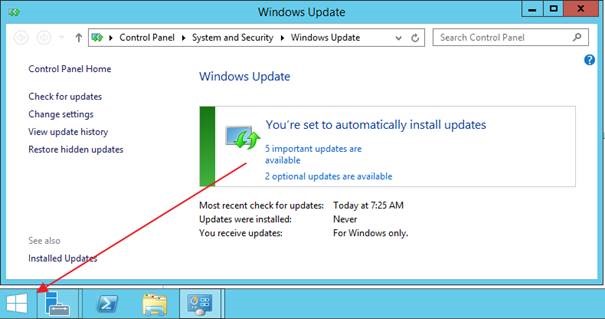
Install the OS, add the Hyper-V role & the Failover cluster feature on the new or the evicted node.You’ll already have some updates to install only a week after the preview bits came available. Microsoft is on top of things, that’s for sure.

clip_image002

Configure the networking for the virtual switch, CSV, LM, management and iSCSI (that’s what I use in the lab) on the OS. Nothing you don’t know yet for this part.

Create a Virtual switch in Hyper-V manager. This is important. If you can you should give it the same name as the ones on the old cluster. Also note that the virtual switch name is case sensitive. If you forget to create one you will not be able to copy the hyper-v virtual machine roles.

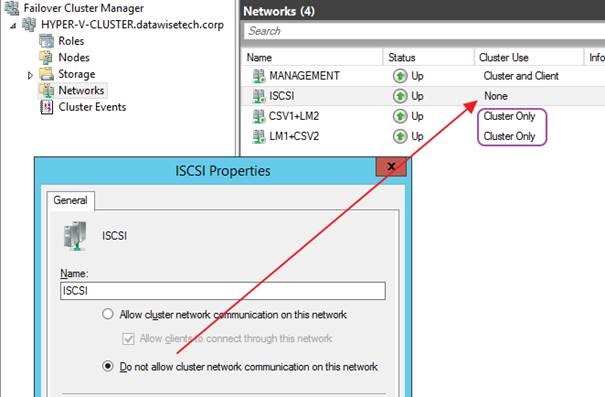
Create a new Cluster & configure networking. One of the nice things of R2 is that is intelligent enough to see what type of connectivity suits the networks best and it defaults to that. It sees that the ISCSI network should be excluded for cluster use and that the CSV/LM network doesn’t need to allow client access.clip_image004

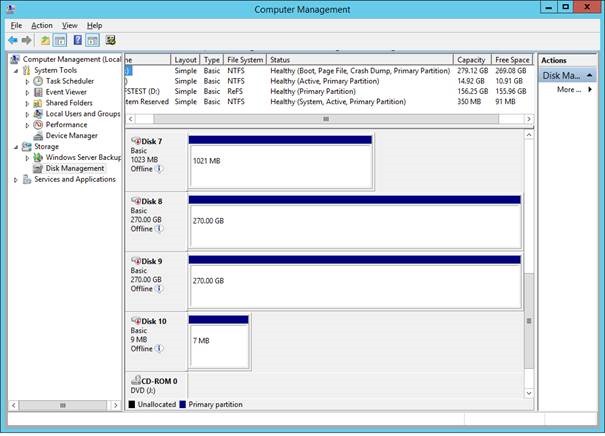
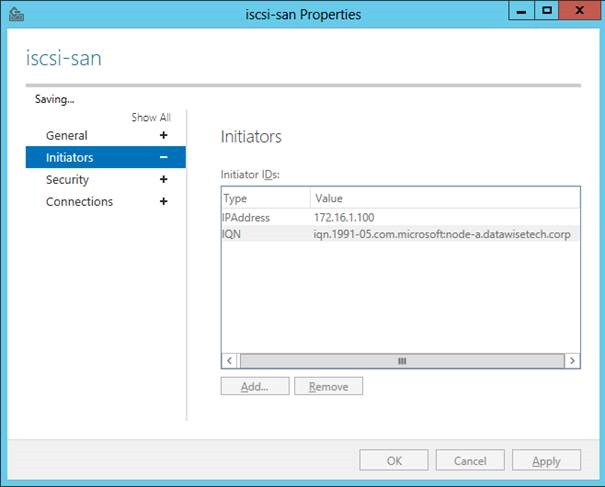
On the ISCSI Target (a W2K12RTM box) I remove the evicted node from the ISCSI initiators and I add the newly installed new cluster node. You can wait to do this out of precaution but the cluster itself does leave the newly detected LUNS off line by default. On top of that it detects the LUNs are in use (reservations) and you can’t even bring them on line.clip_image006

Right click the cluster and select “Copy Cluster Roles”clip_image008

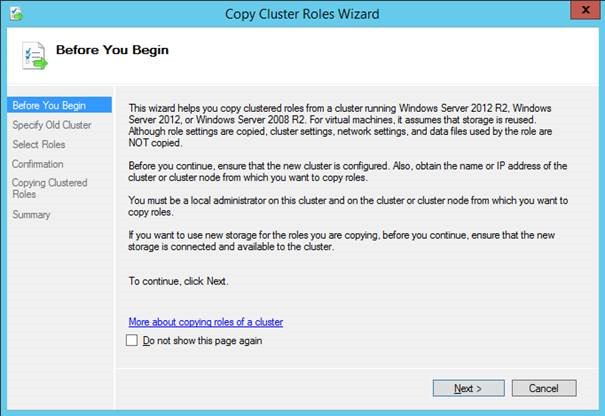
Follow the wizard instructionsclip_image010

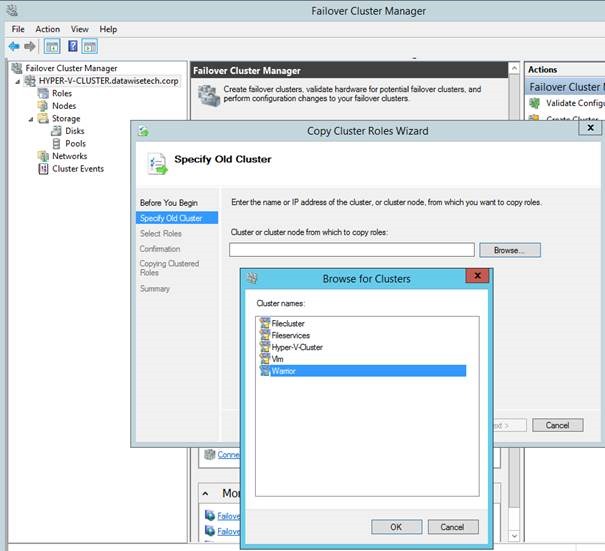
Click Next and then click Browse to select the source cluster (W2K12)clip_image012

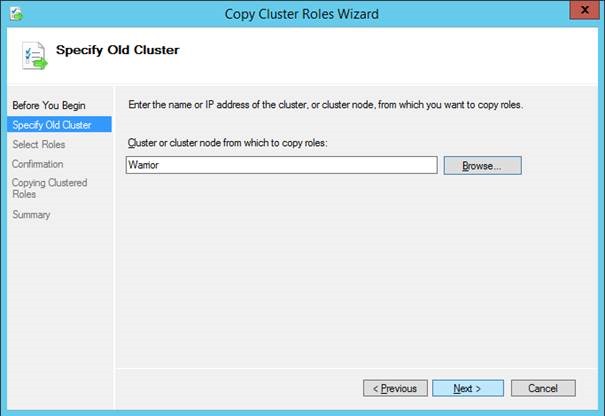
Select “Warrior” and click OK.clip_image014

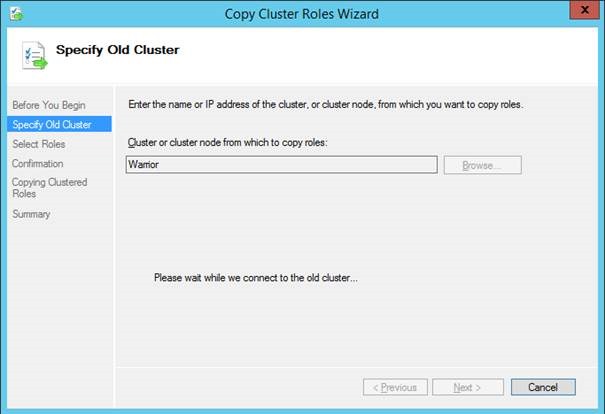
Click Next and see how the connection to the old cluster is being established.clip_image016

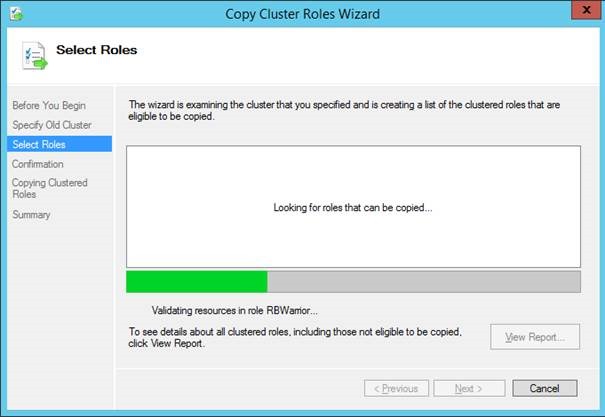
The wizard scans for roles on the old cluster that can be migrated.clip_image018

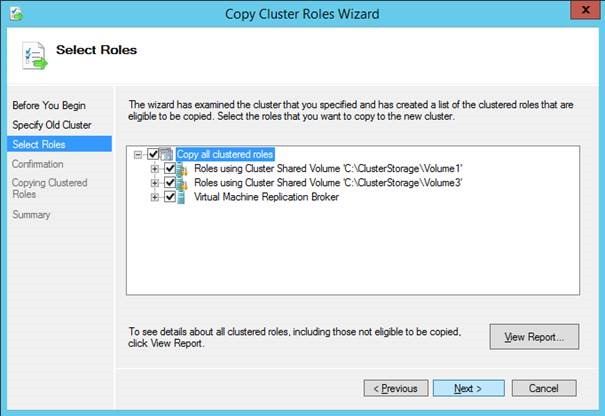
In this example the results are the Roles per CSV and the Replication Broker. For migration you can select one of the CSV’s and work LUN per LUN, select multiple of them or even all. It all depends on your needs and environment. I migrated them all over at once in the lab. In real live I usually do only 1 or a couple of interdependent LUNS (for example OS, DATA, LOGS, TempDB on separate CSVs of virtualized SQL Servers).clip_image020

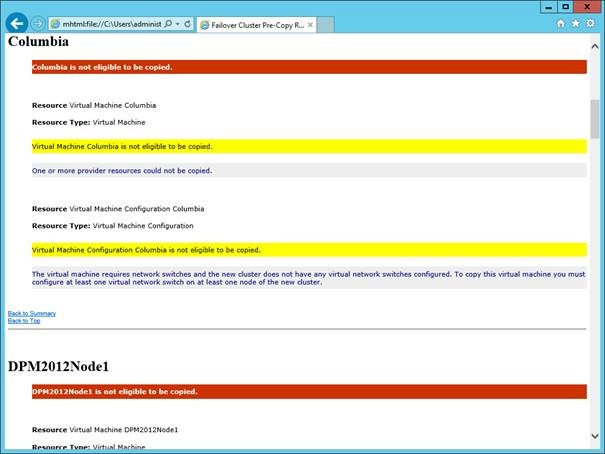
Note that if you did not specify a virtual switch you will not see any Roles on the CSV listed. So that’s why it’s important defining a virtual switch.clip_image022

As we did it right we do see all the virtual machines. As we are not migrating to new storage we have to move all VMs on a LUN in one go. That’s because you cannot expose a LUN to multiple clusters.clip_image024

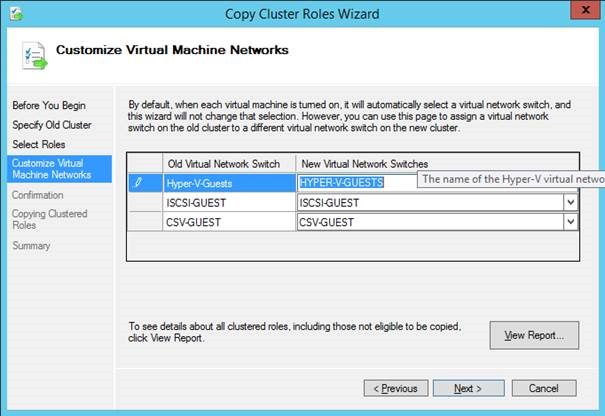
So we select all the clustered roles and click Next. As we use all capitals in the new virtual switch for the guests we are asked to map it manually. When the names are one on one identical AND in the same case, the mapping happens automatically. You can see this for the virtual switches for guest clustering CSV & ISCSI network connectivity.clip_image026

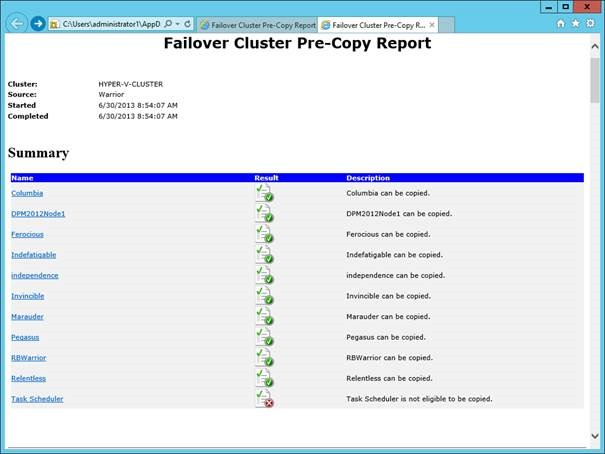
We view the report before we click next and see exactly what will be copied.clip_image028

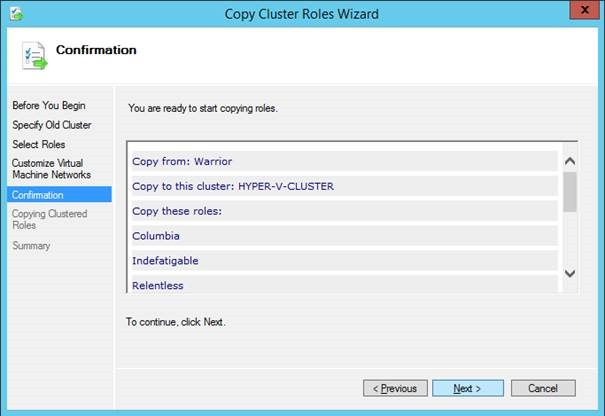
Close the report and click Next.clip_image030

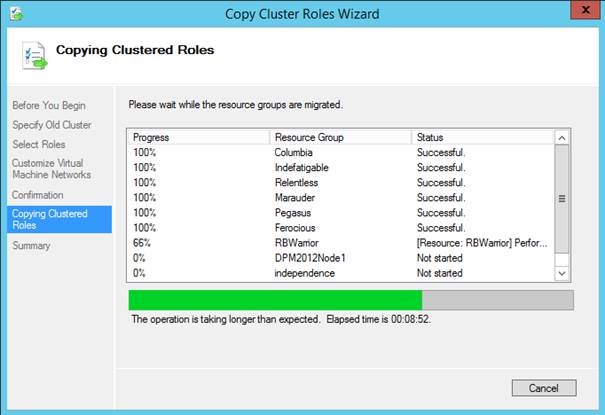
Click Next again to kick of the migration.clip_image032

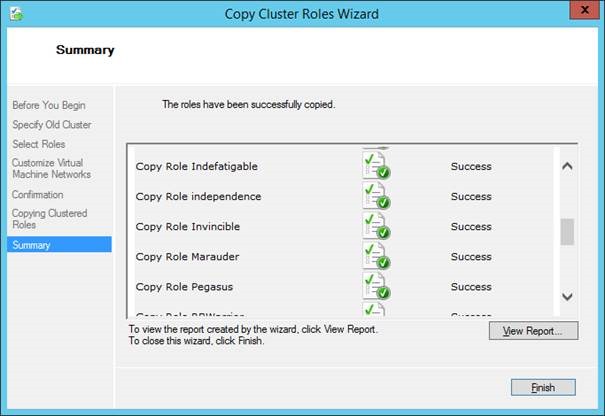
When don you can view a report of the results. Click finish to close the wizard.clip_image034

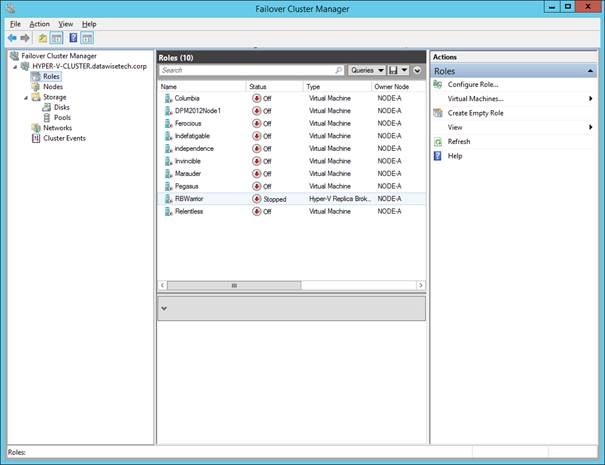
You now have copied your virtual machine cluster roles and the Replication Broker role.clip_image036

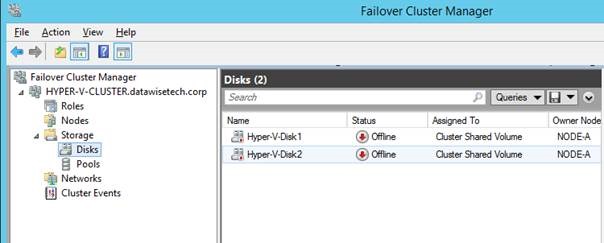
Even the storage is already there in the cluster but off line as it’s not yet available to the new cluster. Remember that your workload is still running on the old cluster so all what you have do until now is a zero down time exercise. clip_image038

2. Preparing to make the switch on the source cluster node(s)

On the source cluster we shut down all the virtual machines and the Replication Broker role.clip_image040

We then take the CSVs off line.clip_image042

If you did not (or could not due to lack of disk space) create a new witness disk you can recuperate this LUN as well. Not ideal I a production migration but dynamic quorum will help you staying protected. Not so with Windows 2008 R2. But you’ll fight as you are. Things are not always perfect.clip_image044

3. Swapping The Storage From the Source To The Target

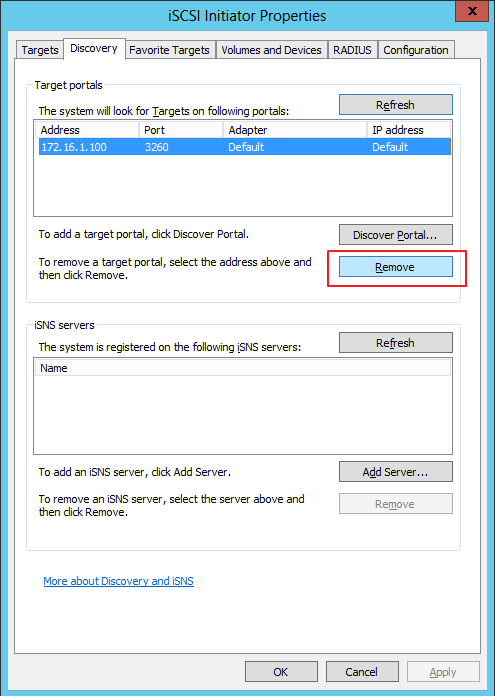
We’ll now disconnect the ISCSI initiator from the target on the old cluster node and remove the target.clip_image045

clip_image046

On the ISCSI target we’ll also remove the old nodes from the list of ISCSI initiators to keep the environment clean. You could wait until you see the VMs up and running on the new environment to facilitate putting the old environment back up if the migration should fail.

clip_image048

Wait until the process has completed and click applyclip_image050

4. Bringing the new cluster into production

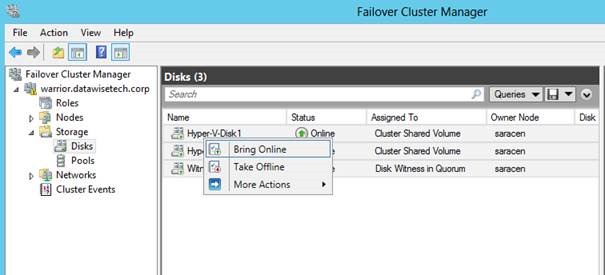
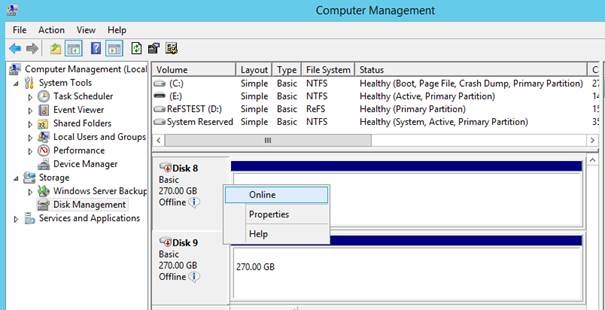
Bring the CSV LUNs on line on the new cluster.clip_image052

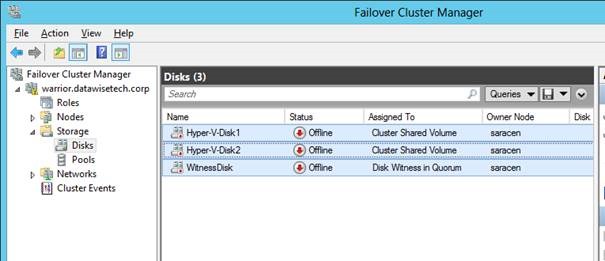
You’ll see then become available / on line in the cluster storage.clip_image054

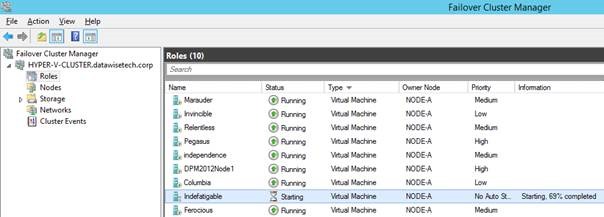
You are now ready to start up your virtual machines on the new cluster. With careful planning the down time for the services running in the virtual machines can be kept as low as 10 to 15 minutes depending on how fast you can deal with the storage switch over. Pretty neat.clip_image056

Conclusion

You can now keep adding new nodes as you evict them from the old cluster. As said the exact scenario will vary based on the workload, number of nodes and CSV in your environment. But this should give you a good head start to work out your migration part. Keep in mind this is all done using the R2 Preview bits. Things are looking pretty good.

In a future blog I’ll discuss some best practices like making sure you have no snapshots on the machines you migrate as this still causes issues like before. At least in this R2 preview.

Teamed NIC Live Migrations Between Two Hosts In Windows Server 2012 Do Use All Members

Introduction

Between this blog NIC Teaming in Windows Server 2012 Brings Simple, Affordable Traffic Reliability and Load Balancing to your Cloud Workloads which states “TCP/IP can recover from missing or out-of-order packets. However, out-of-order packets seriously impact the throughput of the connection. Therefore, teaming solutions make every effort to keep all the packets associated with a single TCP stream on a single NIC so as to minimize the possibility of out-of-order packet delivery. So, if your traffic load comprises of a single TCP stream (such as a Hyper-V live migration), then having four 1Gb/s NICs in an LACP team will still only deliver 1 Gb/s of bandwidth since all the traffic from that live migration will use one NIC in the team. However, if you do several simultaneous live migrations to multiple destinations, resulting in multiple TCP streams, then the streams will be distributed amongst the teamed NICs” and other information out their such as support forum replies it is dictated that when you live migrate between two nodes in a cluster only one stream is active and you will never exceed the bandwidth of a single team member. When running some simple tests with a 10Gbps NIC team this seems true. We also know that you can consume near to all of the aggregated bandwidth of the members in a NIC Team for live migration if you these conditions are met:

1. The Live Migrations must not all be destined for the same remote machine. Live migration will only use one TCP stream between any pair of hosts. Since both Windows NIC Teaming and the adjacent switch will not spread traffic from a single stream across multiple interfaces live migration between host A and host B, no matter how many VMs you’re migrating, will only use one NIC’s bandwidth.

2. You must use Address Hash (TCP ports) for the NIC Teaming. Hyper-V Port mode will put all the outbound traffic, in this case, on a single NIC.

When we look at these conditions and compare them to the behavior we expect from the various forms of NIC teaming in Windows 2012 this is a bit surprising as one might expect all member to be involved. So let’s take a look at some of the different NIC Teaming setups.

Any form of NIC teaming with Hyper-V Port Mode

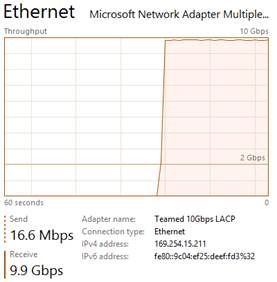
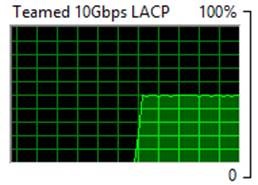
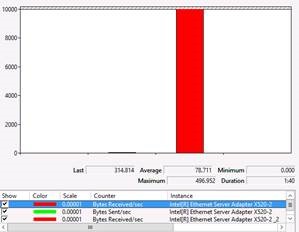
This one is easy as condition 2 above is very much true. In all my testing with any NIC team configuration in the Hyper-V Port mode traffic distribution algorithms I have not been able to exceed 10Gbps. I have seen no difference between dependent static of LACP mode or switch independent (active-active) for this condition. As you can see in the screenshot below, the traffic maxes out at 10Gbps.

clip_image002

clip_image004

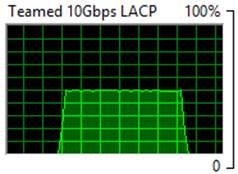
This is also demonstrated in the following screenshots taking with the resource manager where you can see only half of the bandwidth of the Team is being used.

clip_image006

clip_image008

Exceeding a single NIC team member’s bandwidth when migrating between 2 nodes

The first condition of the previous heading doesn’t seem true. In some easy testing with a low number of virtual machines and not too much memory assigned you never exceed the bandwidth of one 10Gbps NIC team member. So on the surface, with some quick testing it might seem that way.

But during testing on a 2 node cluster with dual port 10Gbps cards and I have found the following

Switch Dependent LACP and Static

  1. Take a sufficient number of large memory virtual machines to exceed the capacity of a single 10Gbps pipe for a longer time (that way you’ll see it in the GUI).
  2. Live migrate them all from host A to host B (“Pause” with “Drain Roles” or “select all” + “Move”)
  3. Note that with a 2 node cluster there is no possibility to Live Migrate to multiple nodes simultaneous. It’s A to or B or B to A or both at the same time.

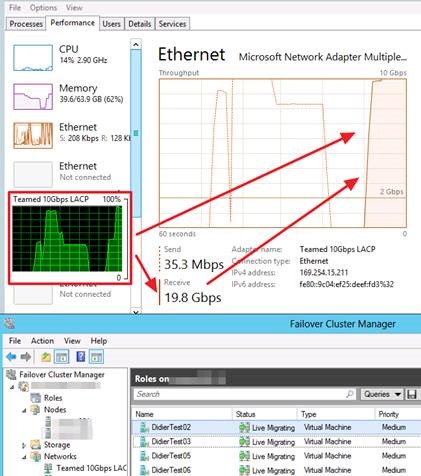
Basically it didn’t take long to see well over 10Gbpsbeing used. So the information out there seems to be wrong. Yes we can leverage the aggregated bandwidth when we migrate from host A to host B as long as we have enough memory assigned to the VMs and we migrate a sufficient number of them. Switch dependent teaming, whether it is static or LACP does its job as you would expect.

Let’s think about this. The number of VMs you need to lie migrate to see > 10Gbpss used is not fixed in stone. Could it be that there is some intelligence in the Live Migration algorithm where it decides to set up multiple streams when a certain number of virtual machines with sufficient memory are migrated as the sorting is mitigated by the amount of bandwidth that can leveraged? Perhaps he VMMS.EXE kicks off more streams when needed/beneficial? Further experimenting indicates that this is not the case. All you need is > 1 VM being live migrated. When looking at this in task manager you do need them to be of sufficient memory size and/or migrate enough of them to make it visible. I have also tried playing with the number of allowed simultaneous live migrations to see if this has an effect but I did not find one (i.e. 4, 6 or 12).

It looks like it is more like one TCP/IP connection per Live Migration that is indeed tied to one NIC member. So when you live migrate VMS between two hosts you see one VM live migration go over 1 member and the other the other as static/LACP switch dependent teaming did does its job. When you do enough live migrations of large VMs simultaneously you see this in Task Manager as shown below. In this case as each VM live migration stream sticks to a NIC team member you do not need to worry about out of order packets impacting performance.

clip_image010

But to make sure and to prevent falling victim to the fall victim to the limits of the task manger GUI during testing this behavior we also used performance monitor to see what’s going on. This confirms we are indeed using both 10Gbps NIC team member on both the target and the source host server. This is even the case with 2 virtual machines Live Migration. As long as it’s more than one and the memory assigned is enough to make the live migration last long enough you can see it in Task Manager; otherwise it might miss it. Performance Monitor however does not..clip_image012

clip_image002[4]

clip_image004[4]

This is interesting and frankly a bit unexpected as the documentation on this subject is not reflecting this. However it IS in agreement with the NIC teaming documented behavior for other tan Live Migration traffic. We took a closer look however and can reproduce this over and over again. Again we tested both switch dependent static and LACP modes and we found the behavior to be the same.

Switch Independent with Address Hash

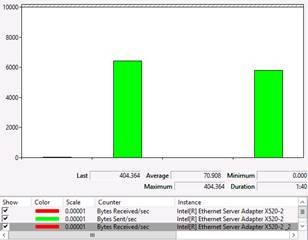
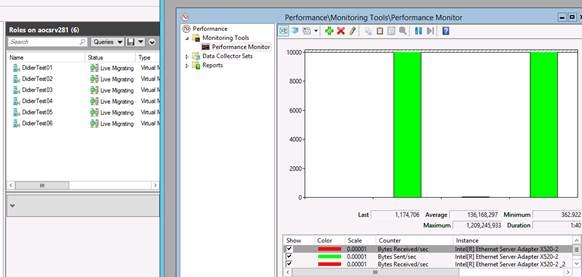
Let’s test Live Migration over switch independent teaming with Address Hash. Here we see that the source server sends on the two member of the NIC team but that the target server receives on only one. This is normal behavior for switch independent teaming. But from the documentation we expect that one member on the source server would send and one member on the target server would receive. Not so.

Basically with Windows Server 2012 this doesn’t give you any benefit for throughput. You are limited to the bandwidth of one member, i.e. 10Gbps.

clip_image018

clip_image020

Red is Total Bytes received on the target host. It’s clear only one member is being used. Green is Bytes Sent/Sec on the source server. As you can see both team members are involved. In a switch independent scenario the receiving side limits the throughput. This is in agreement the documented behavior of switch independent NIC teaming with Address hash.

Helpful documentation on this is Windows Server 2012 NIC Teaming (LBFO) Deployment and Management (A Guide to Windows Server 2012 NIC Teaming for the novice and the expert).

Hope this helps sort out some of the confusion.