My Impressions on Windows Server 2012 Hyper-V Cookbook

Having read Windows Server 2012 Hyper-V Cookbook I can safely say that if you need get up to speed with Hyper-V in Windows Server 2012 this is a great book for this purpose.

Having met Leandro Carvalho that’s not a surprise. What is pretty impressive is how he managed to get all you need to know to get going inside of one book that you can still lift with one hand. Now this is not going to make you a veteran Hyper-V enterprise architect over the weekend but it will help you get a well set up and functional Hyper-V environment running, monitored and protected. If you are already familiar with Hyper-V form previous Windows versions this book will also get you up to speed on a lot of the most important new features and improvements.

Windows Server 2012 Hyper-V Cookbook

Now a mere 305 pages are not enough to go into depth on every subject but this book will make a fine learning tool to set up a lab and take your first Windows Server 2012 Hyper-V servers / clusters into production. It also tackles some of the more intimidating stuff to some people like in place upgrades of Hyper-V clusters and disaster recovery. Details like CSV cache, Port ACL and their significance in the new Hyper-V version are not forgotten. I like that attention to detail. Knowing the vastness of what’s new in Windows Server 2012 Hyper-V I’m impressed at how well organized and effective the information is presented. So if you need to get started with Hyper-V, do it here with this book. It will make for a fine foundation to build on and move on to investigate the numerous network configurations, the VHDX format, SMB 3.0 goodness etc.

Heading Towards The 2013 Global MVP Summit

Hello people, I’m making my way to Seattle at the moment to attend the 2013 Global MVP Summit. I’m really looking forward to this as I have a lot of feedback and questions on using Windows Server 2012 and Hyper-V in real live. That and the fact that we’ll get to discuss all this amongst each other and with the product teams. There are not many opportunities where you get to meet up with so many enthusiastic subject matter experts from all over the world.

Last month I checked my Electronic System for Travel Authorization (ESTA) papers and made sure my passport was valid.  So after packing my bag it’s now traveling time as I need to get myself to SEATAC. One of these below works just fine for that purpose I know from experience. While awaiting boarding time I’ve parked myself in LHR. If it’s anything like last year this could be considered a long-haul MVP flight Smile.

image

I’m eager to meet up with friends and acquaintances again to talk shop and some fun. So Hyper-V, Cluster, Storage, Network PMs … my fellow MVPs and I are on our way. See you all very soon!

Understanding Virtual Machine Priority and Preemption Behavior

Introduction

By reading Aidan Finn his blog You Pause A Clustered Hyper-V Host And Low Priority VMs are QUICK MIGRATED! you will learn something about how virtual machine priorities work during the pausing and draining of a clustered Hyper-V host. They are either Live or quick migrated depending on the value of the MoveTypeThreshold cluster parameter for resources of the type “Virtual Machine”. By default it’s at 2000 and that happens to be the value of the virtual machine priority “Low”.

Changing this value can alter the default behavior. For example setting the MoveTypeThreshold value to 1000 using PowerShell

Get-ClusterResourceType “Virtual Machine” | Set-ClusterParameter MoveTypeThreshold 1000

makes sure that only VMs with a priority set to “No Auto Restart”  are quick migrated. The  low priority machines would than also live migrate where by default they quick migrate.

  • Virtual Machines with Priority equal to or higher than the value specified in MoveTypeThreshold will be moved using Live Migration.
  • Virtual Machines with Priority lower than the value specified in MoveTypeThreshold will be moved using Quick Migration.

Virtual Machine Priorities
3000 = High
2000 = Medium
1000 = Low
0 = Virtual machine does not restart automatically.

Another Scenario to be aware of  to avoid surprises

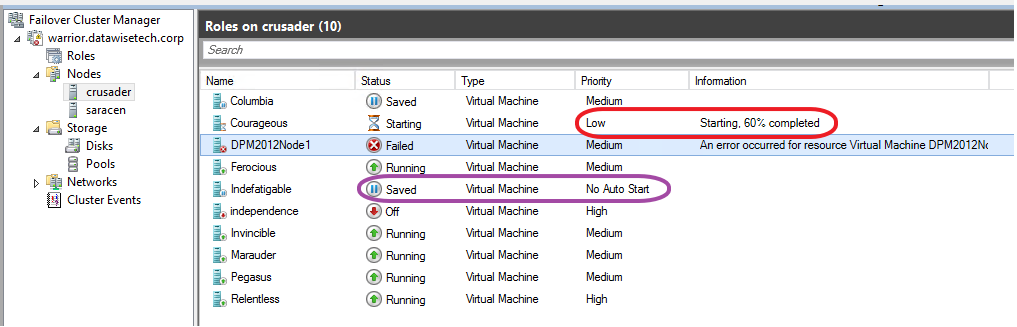
Note that al this also comes into play in other scenario’s. One of them is when you attempt to start a guest that requires more resources than available on the host. Preemption kicks in and the lower priority virtual machines go into a saved state.  If you didn’t plan for this it could be a bit of a surprise, causing service interruption. What’s also important to know is that preemption kicks in even when there is no chance that putting lower priority virtual machines into saved mode will free enough resources for (all) the VMs you’re trying to start. So that service interruption might do you no good. If this is the case the Low priority VMS come back up when there are sufficient resources left.  Do note however that the ones set top “No Auto Restart” remain in a saved state. Look below for an example on how this could happen.

How does this happen?

Let’s say you have a brand new VM that has gotten 16GB of RAM as requested by the business. When that large memory guest starts it will fail due to the fact that there are not enough memory resources available on the host that only has 16GB available. But as it attempts to start, the need for memory resources is detected and preemption comes into play. The guests with “Low” and “No Auto Restart” priorities are put into a saved state as the large memory VM has the default medium priority and the MoveTypeTreshold is at the default of 2000. You need to be ware of this behavior. Preemption kicks in and the machines are still saving while starting the large memory VM has already failed as they couldn’t free enough resources anyway.

image

The good new is that, as you can see below, is that the low priority guest starts again after starting the large memory guest has failed. No use keeping it saved as it can run and service customers. So the service interruption for this VM is limited but it does happen. Please also note that the guest set to No Auto Restart doesn’t come up again as it’s priority status says exactly that. So, this one becomes collateral damage.

image

As you can see it’s important to know how priorities and preemption work together and behave. It also good to know that changing the threshold come into play in more situations that just pausing & draining a host of during a fail over. While the cluster will try it’s best to keep as many VMs up and running you might have some unintended consequences under certain conditions. A good understanding of this can prevent you from being bitten here. So build a small cheap lab so you can play with stuff. This helps to gain a better understanding of how features work and behave. If you want to play some more, set the priority of the memory hungry VM to high you’ll see even more interesting things happen.

Exploring Hyper-V Virtual Switch Port Mirroring

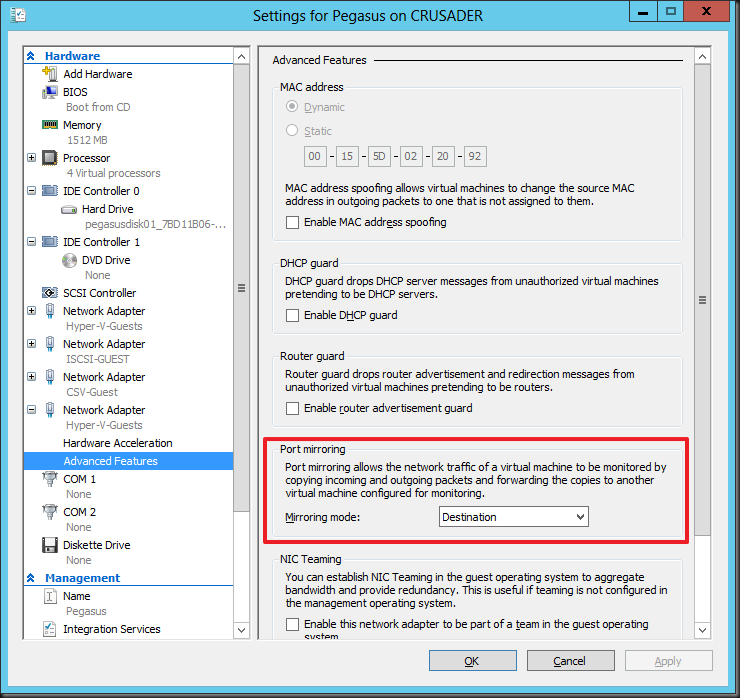
Windows Server 2012 brings us many new capabilities and one of those is port mirroring. You can now configure a virtual machine NIC (vNIC) who’s traffic you want to monitor as the source in the Advanced Features of the Network Adapter settings. The vNIC of the virtual machine where you’ll run a network sniffer, like Network Monitor or WireShark, against is set to “Destination”. It’s pretty much that simple to set up. Easy enough.

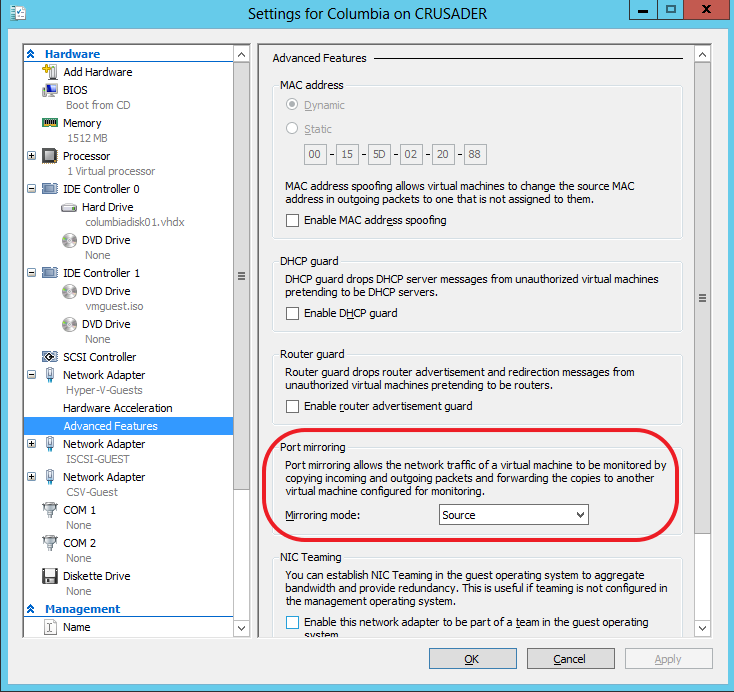
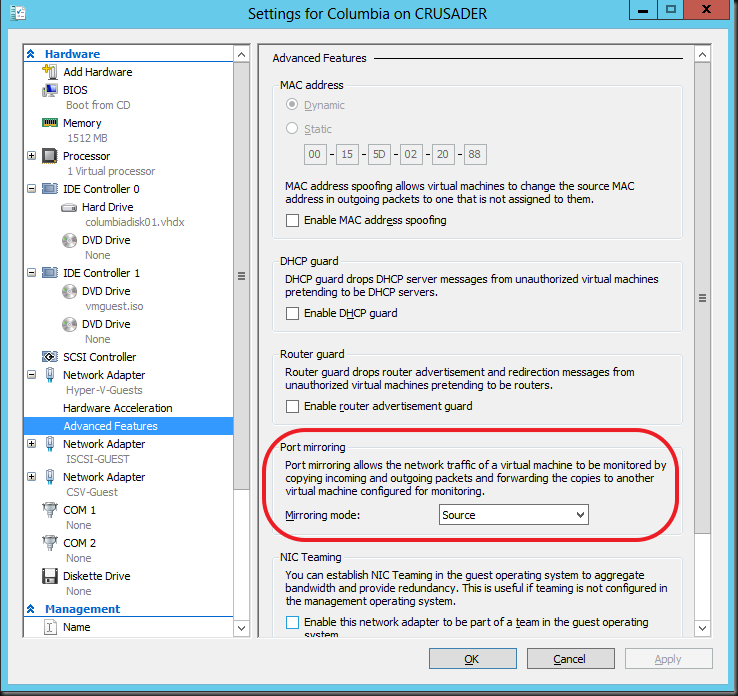
On the vNIC you want to monitor the traffic to and from the VM, under Settings, Network Adapter (choose the correct one), under Advanced Features you select “Source” as Mirroring mode. In this example we’re going to monitor data traffic to and from the guest Columbia.image
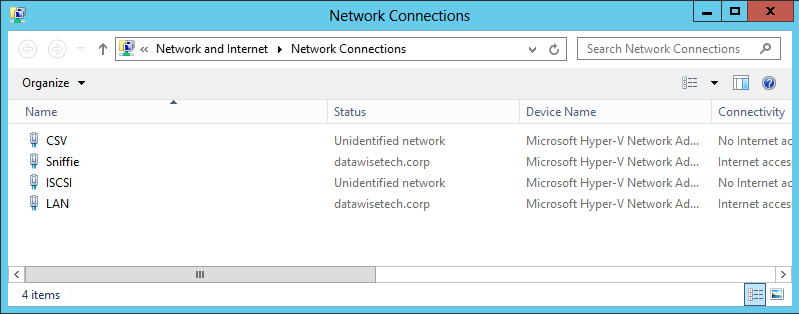
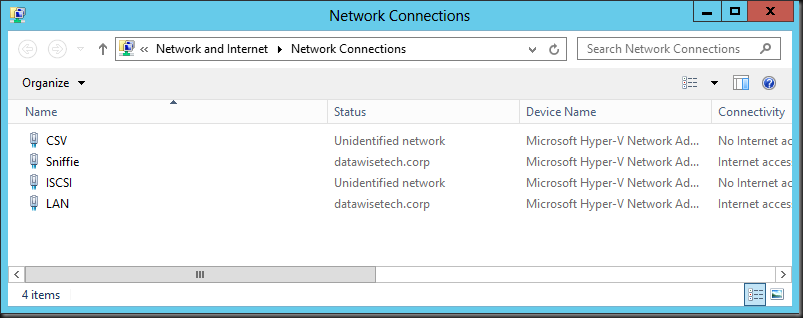
On the destination VM we have a dedicated vNIC set up called “Sniffie”image
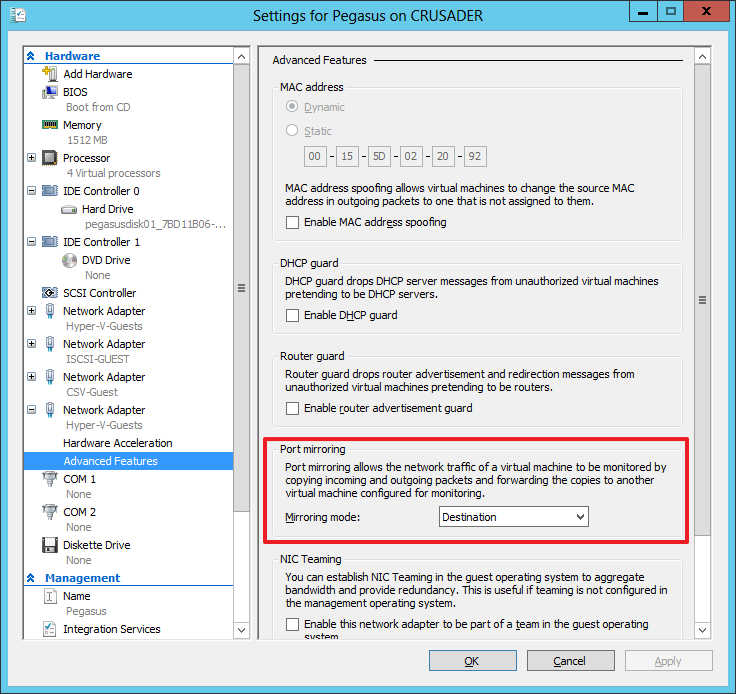
On the guest VM Pegasus, where we’ll capture the network traffic via a dedicated vNIC (“Sniffie”), we set that vNIC (virtual port) to “Destination” as Mirroring node:image
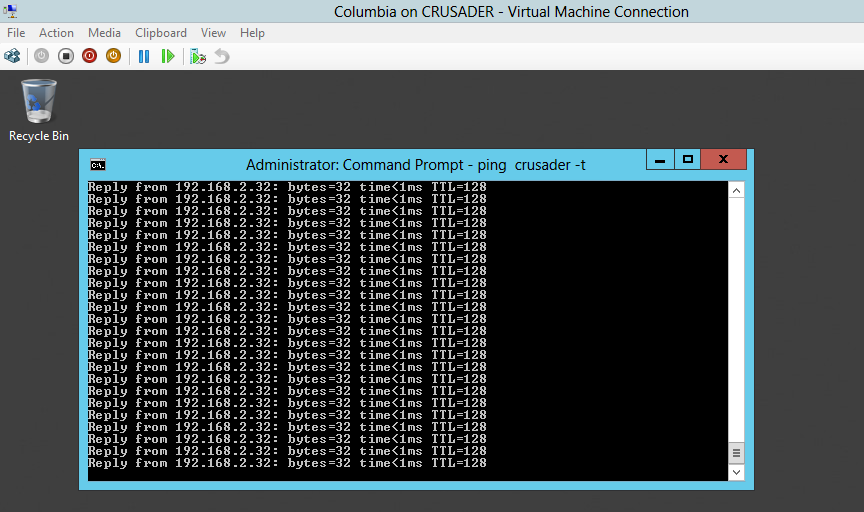
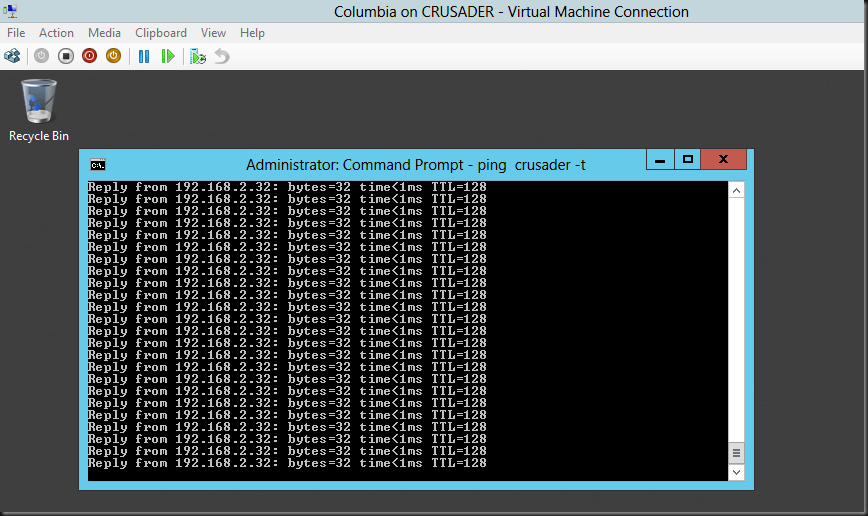
So now let’s start pinging a host (ping –t crusader)  on our Source VM  Columbiaimage
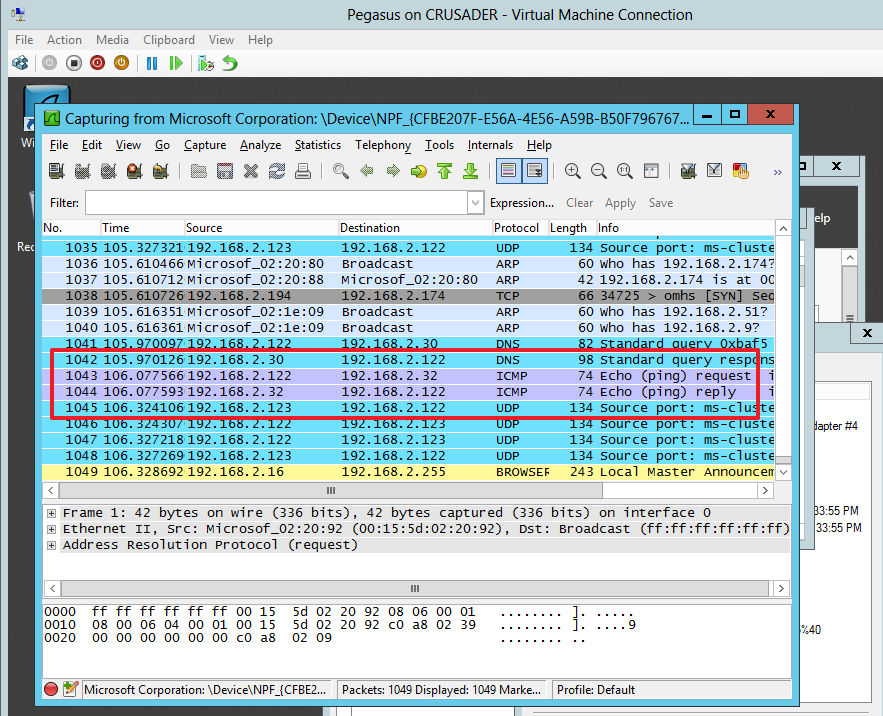
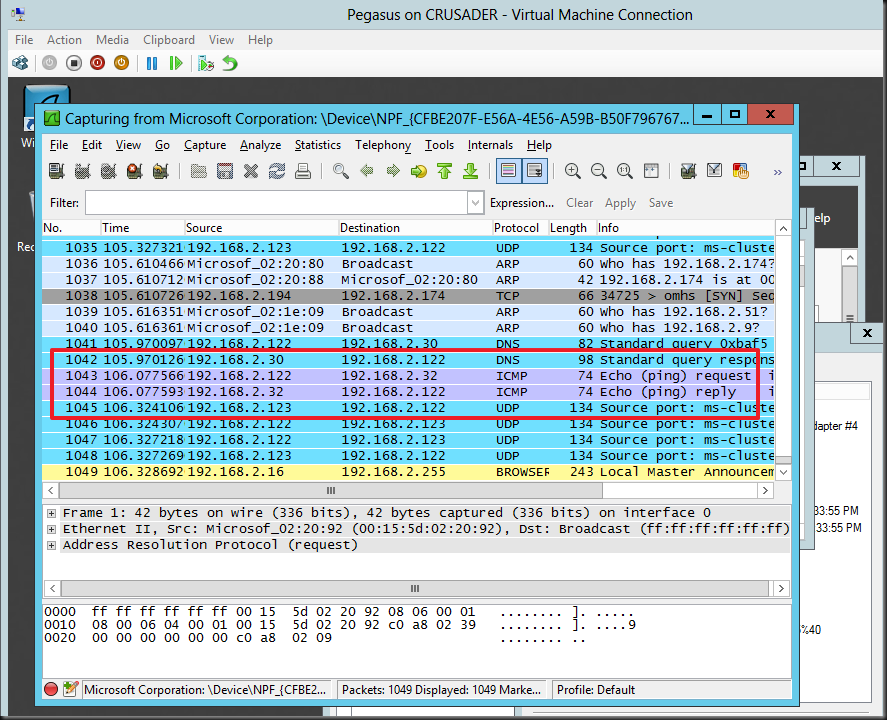
And take a look on the Destination vNIC on virtual machine Pegasus where we’re capturing the traffic. The “Sniffie” NIC there is set to destination as Mirror Mode. Look at the ICMP echo reply from form 192.168.2.32 (Crusader host). Columbia is at 192.168.2.122 sending out the ICMP echo request.image
Pretty cool!

Some Technicalities

So deep down under the hood, it’s the switch extension capabilities  of the Hyper-V virtual switch that are being leveraged to achieve port sniffing. This is just one of the many functionalities that the Hyper-V extensible switch enables. The Hyper-V extensible switch itself uses port ACLs to set a rule that forwards traffic from one  virtual port to another virtual port. For practical reasons translate virtual port to vNIC in a VM and this translates into what we shown above. While it’s good to know that port ACLs are what is used by the extensible switch to do enable all kinds of advances features like port mirroring but you don’t need to worry about the details to use it.

Things to note

Initially many of us made the assumption that we’d be able to sniff the traffic form a virtual port to a port on their physical switch. This is not the case. Basically, in box, it’s a source VM that mirrors it’s network traffic form one or more virtual ports (vNICs) to a destination VM’s one or more virtual ports (vNIC).

You can send many sources to one destination. That’s fine. You could also define more destinations on the same host but that’s not really wise and practical as far as I can see. All in all, you set it up on  when needed on the source VM and you keep a destination VM with a sniffer around for the sniffing.

Also keep in mind that all this works within the boundaries of the same host. Which means that if you want to monitor a VMs network traffic when it moves across nodes in a cluster you’ll have to have "destination” virtual machine on each host. This means that when a source VM is live migrated it will mirror the traffic to that local destination VM. That works.

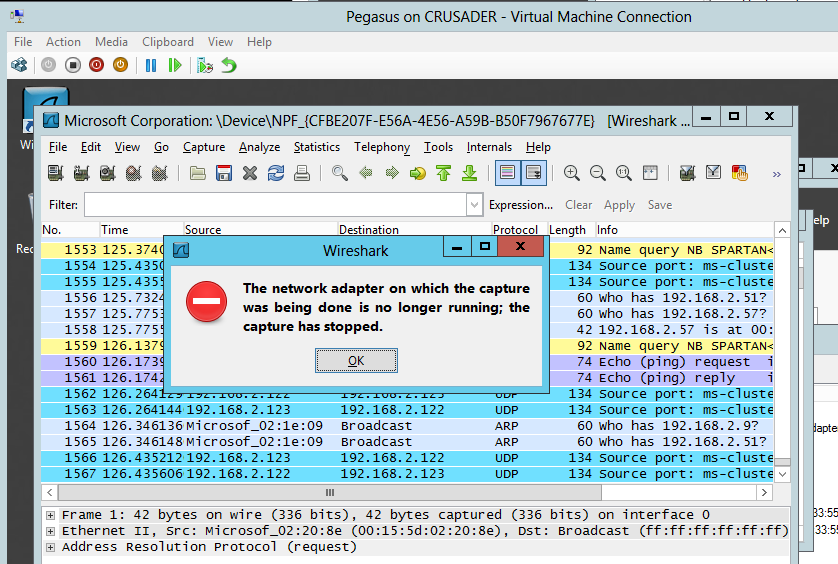
You could try and live migrate source & destination VMs to the same host but this is not feasible in real life. For one the capture doesn’t survive after a life migration as your sniffer loses connectivity to virtual Port / vNIC.image
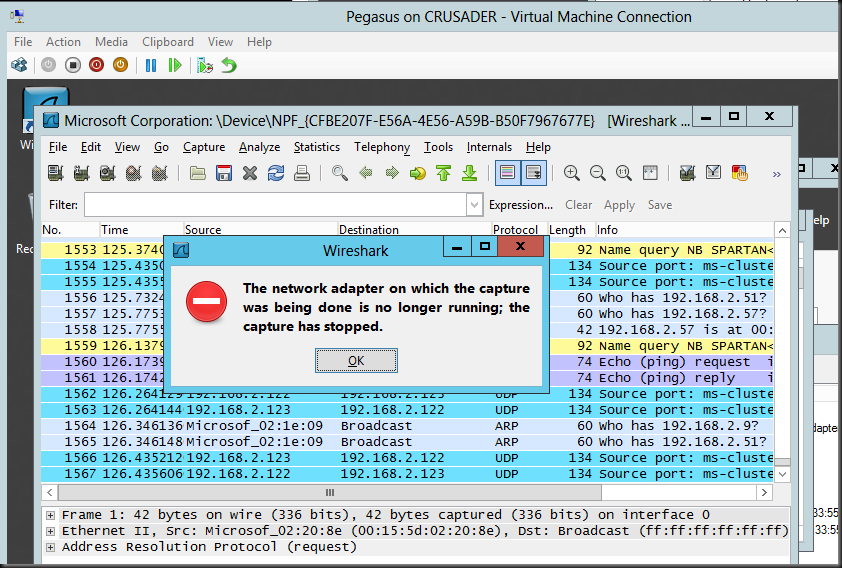
Don’t be too disappointed about this. Port mirroring is not meant to be a permanent situation that you need to keep highly available anyway, bar some special environments/needs.

Whilst is it true that out of the box you can’t do stuff like sending the mirrored traffic form a guests vNIC/virtual port to a physical switch port where you attach your network sniffer laptop or so. If you throw on the CISCO Nexus 1000V it replaces the Microsoft in box “Forwarding Extensions” and than it’s up to CISCO’s implementation to determine what you can or can’t do. As this stuff is right up their sleeve they allow the Cisco Nexus 1000V mirrors traffic sent between virtual machines by sending ERSPAN to an external Cisco Catalyst switch. I have not had the pleasure of playing working with this.

Anyway, I hope this help to explain things a little. Happy sniffing and don’t get yourself into trouble, follow the rules.