New Functionality in Virtual Machine Manager Self Service Portal 2.0 SP1 Béta

It’s playtime! Via the Microsoft Connect site (you can get an invite to join the Connect site from TechNet page What’s New in System Center Virtual Machine Manager Self Service Portal 2.0 SP1 Beta, it below under “Join the Beta”) you can get your hands on the Virtual Machine Manager Self Service Portal 2.0 SP1 Béta. Some new features to highlight are the ability to import virtual machines (VMs that were removed from the self-service portal or VMs that are managed by SCVMM but are not created & available in the self-service portal). There are notifications available now for events using SQL mail so you can keep an eye on what is happening. Virtual Machine Templates can now be added to infrastructures (fast, no need for the entire request/provision process). You also get the option to move infrastructure between business units while in maintenance mode and even delete business units when they don’t own infrastructure. But the one I like best is the fact that we can expire virtual machines.

No, the last one doesn’t mean I want to be the bastard operator from hell that hates everyone and is so out of touch with the reality of “enabled” or “empowered” users or customers that he wants to seek & destroy them all. But when you’ve been in infrastructure for a while you’ve probably come across situations where the orphaned, abandoned, forgotten, virtual & yes even physical servers are working very hard on becoming a majority instead of an exception. This puts an enormous burden on the infrastructure, workload and it drives up costs very fast while it’s isn’t providing any ROI or other benefits to the business. Unless you’re getting paid to maintain infrastructure by the VM  (congrats!) and you just smile when you find 50% superfluous guests as this means the sound of your cash register ringing in your ears.

The thing is “Horror Vacui” comes into play and the inevitable desire of the universe for maximum entropy. So any environment will need some managing and it will be a welcome tool to help automate that management & enforce some decisions. You can even delegate this all via roles, so people can be empowered to set or change expiration dates. That way you can try to go for self-regulation. This can work.
Hyper-V Dynamic Memory does not work on a Windows Server 2008 Standard Edition or Windows Web Server 2008 virtual machine (VM)

Here’s a pointer to a Microsoft Knowledge base article on Hyper-v Dynamic Memory not working on Windows 2008 Standard & Web edition Hotfix: Hyper-V Dynamic Memory does not work on a Windows Server 2008 Standard Edition or Windows Web Server 2008 virtual machine (VM) As you probably already know you have a similar issue with Window 2008 R2 Standard and Web edition virtual machines which is fixed by installing SP1 in the guest. For the predecessor of R2 you need to install this hotfix.

The cause is that on these versions of the operating systems the the required memory enlightenment is supported. After installing the hotfix (or SP1 in the case of Windows 2008 R2) memory addition enlightenment is available on these SKU and your good to go.

Hyper-V Component Architecture Poster Updated With Windows 2008 R2 SP1 Features

You probably are all familiar with the component posters that Microsoft put out for Several technologies. You have the Exchange 2010 (Exchange Server 2010 Architecture Poster), Windows 2008 R2 (Windows Server 2008 R2 Feature Components Poster) & Hyper-V (Hyper-V Component Architecture).

I have them hanging on the walls around our offices and these make a great tool to discuss the technology and where what is being done or accomplished. Or as a reference when you need to explain some features.  I suggest you download them and have them plotted in a print shop.

Microsoft recently put out a new version of the Hyper-V Component Architecture poster with the Windows 2008 R2 Service Pack 1 features (Windows Server 2008 R2 Hyper-V Component Architecture (with Service Pack 1)). It’s nice to see that they update these so quickly.  We’re plotting this on A0 as we speak.

Upgrading a Hyper-V R2 Cluster to Windows 2008 R2 SP1

For all you people waiting to roll out Windows 2008 R2 SP1 to your Hyper-V cluster here’s a quick screenshot rich run through of the process. Some people claim you need to shut down the cluster services and shut down the guests but this is not the case.  You can do a rolling upgrade and your guests can stay on line on the other nodes, just use live migration to get them there. Now I do recommend to upgrade all the nodes tot SP1 as soon as possible and not staying a mixed Windows 2008 R2 / Windows 2008 R2 SP1 situation in your cluster. But this mixed situation makes upgrades of the nodes in the cluster possible without any down time for the guests (if you have live migration), which is the aim of having a high availability cluster.

Walk Through

Live migrate all the guests from the node you wish to upgrade to SP1. Make sure the host is fully patched and disable any antivirus services if you are running any. I always reboot the node before a major upgrade to make sure we have the server in a clean state with  no lingering reboots waiting  or processes can cause issues.

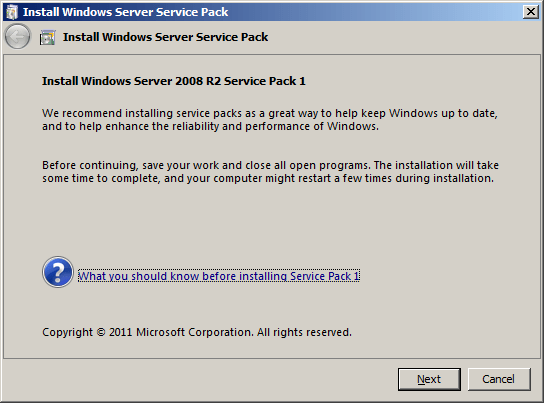
Navigate to the service pack 1 file for Windows 2008 R2, it’s called windows6.1-KB976932-X64.exe and start it up:

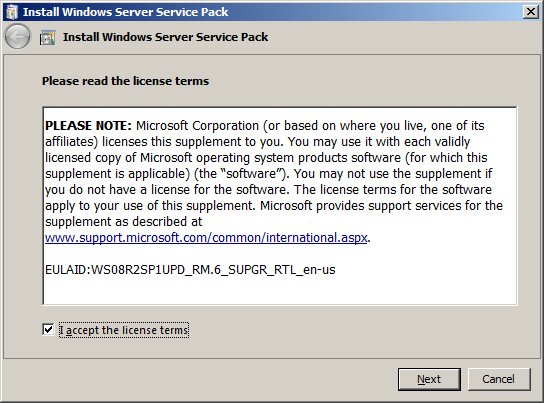
You’ll have to accept the license terms:

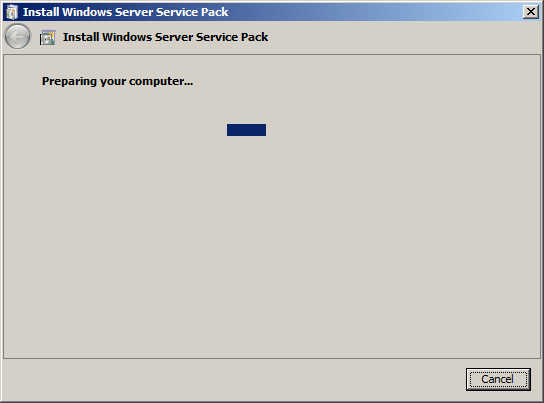
And then the preparation process starts:

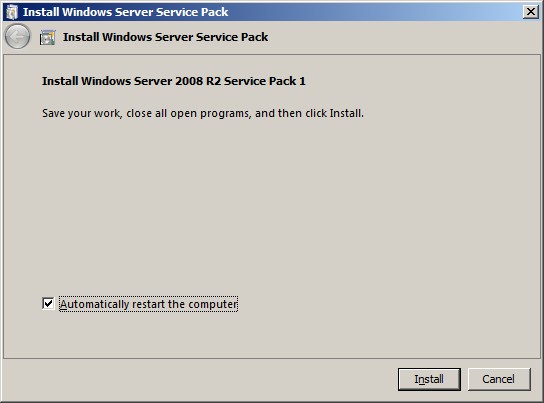
It is now ready to start the upgrade and yes we want it to reboot automatically when needed:

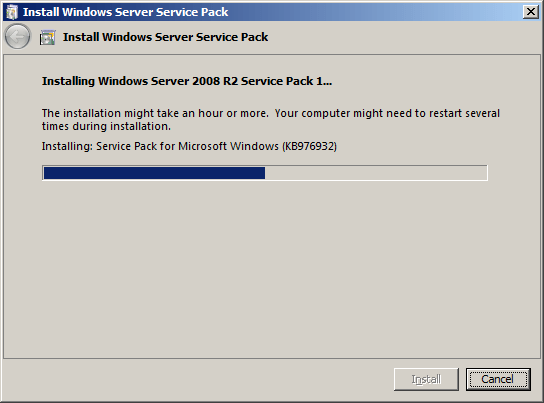
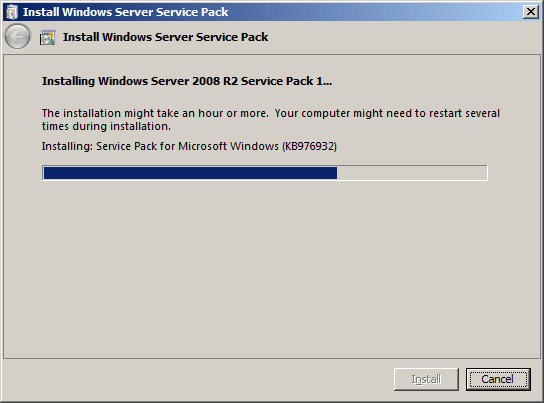
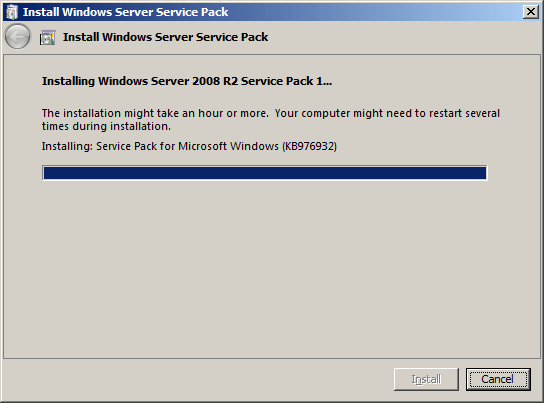
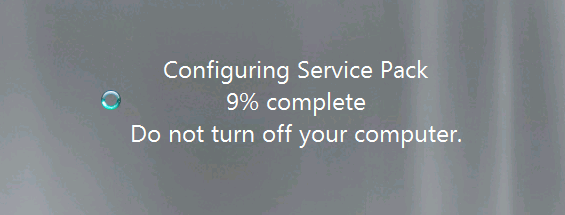
The upgrade process takes a while (about 17 minutes on my lab servers):


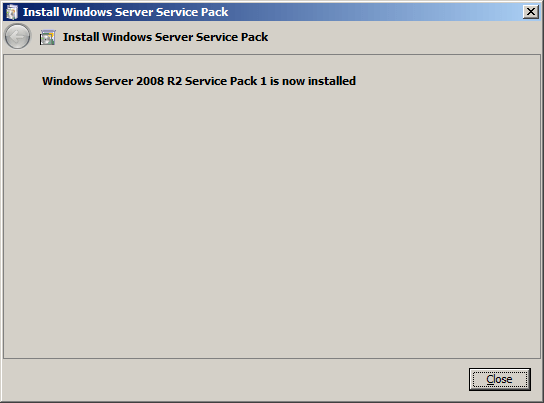
When it’s done it will reboot and bring you back to the logon screen. Multiple reboots might be needed to complete the upgrade process depending on what’s running on your server. In this case, we are dealing with dedicated Hyper-V nodes.

View when connected to the console

View when connected via RDP

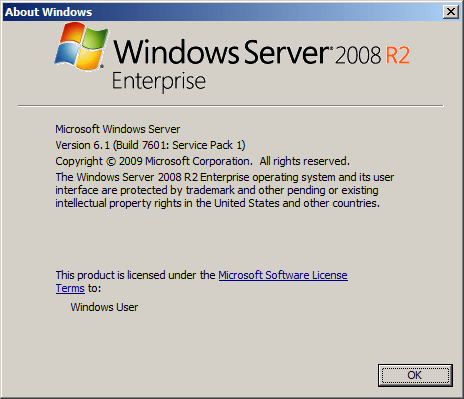
After logging on you are greeted with this window:

And yes this is indeed the case

Reboot included the entire process took about 22 to 23 minutes. In the setup event log you’ll find these messages:

  • Initiating changes for package KB976932. Current state is Absent. Target state is Installed. Client id: SP Coordinater Engine.
  • Package KB976932 was successfully changed to the Installed state.

Note: if an extra reboot is required you’ll see an extra entry in between these stating: A reboot is necessary before package KB976932 can be changed to the Installed state.

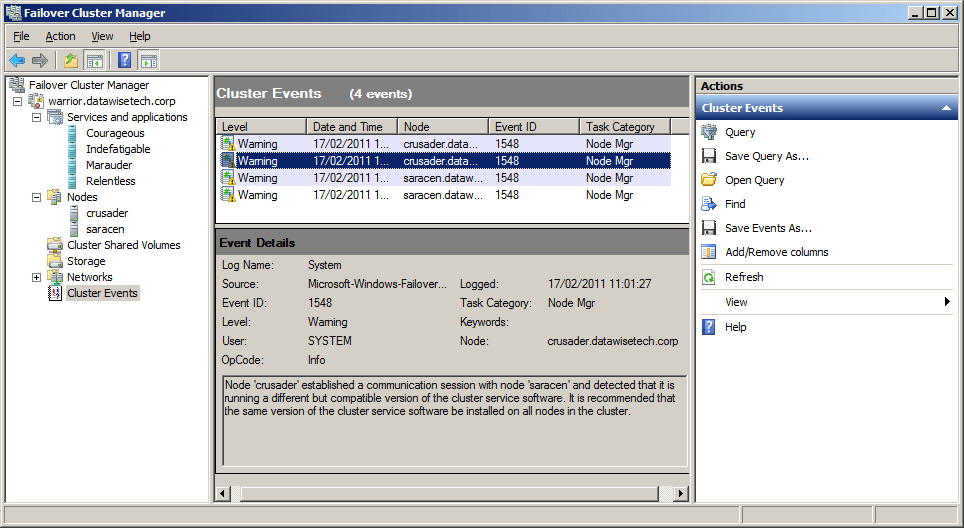
When you have a cluster with nodes running both W2K8R2 TM and W2K8R2 SP1, mixed situation so to speak,  you’ll see the following notification in the cluster events:

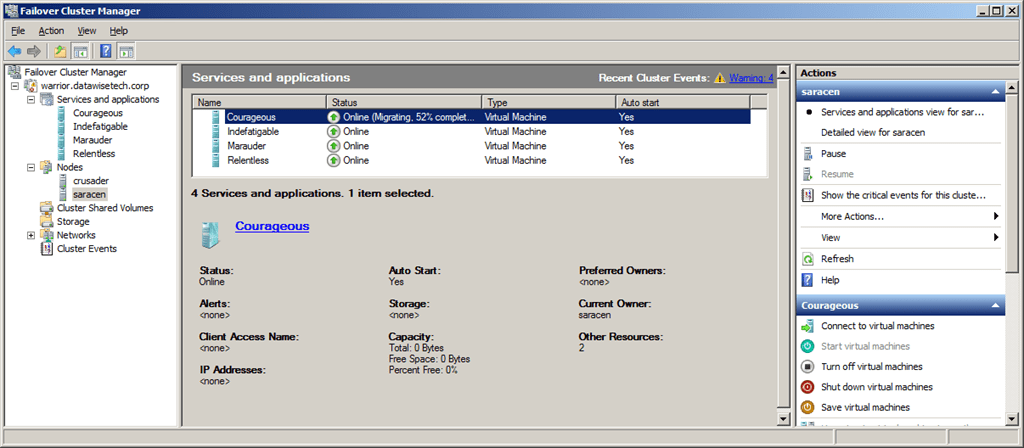
You can live migrate the guest from the next node to the node already upgraded to SP1 and than repeat the process. You keep doing this until all your nodes are upgraded.

As a final recommendation, I would suggest waiting until you get the SCVMM2008R2 SP1 bits is you use this product before you upgrade your clusters especially when using this with SCOM2007R2 PRO Tips. Otherwise, you don’t need to wait just realize that until you have SP1 for SCVMM2008 R2 you won’t be able to use the new functionality for Hyper-V. In production, I would not recommend using the RC1 for this.

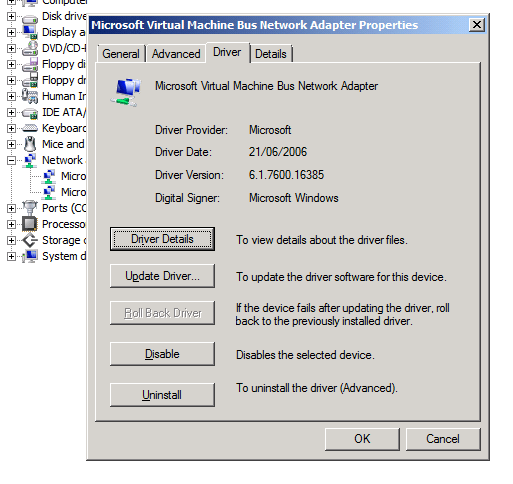
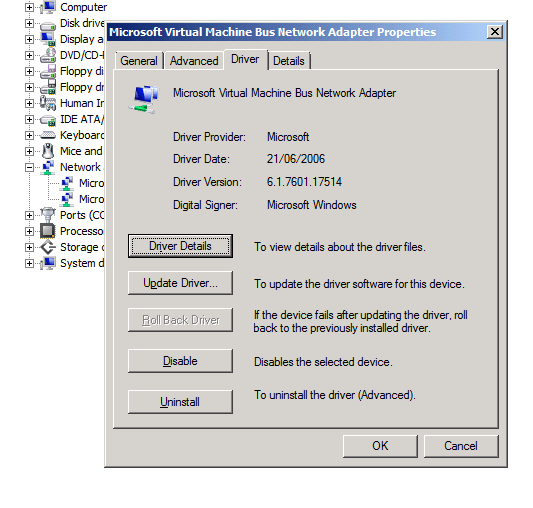
Please do not forget to update your guests with the new SP1 version of the Hyper-V Integration Components. This is needed to be able to use the new features like Dynamic Memory & Remote FX. The Windows 2008 R2 RTM version of the Integration Components is  6.1.7600.16385:

image

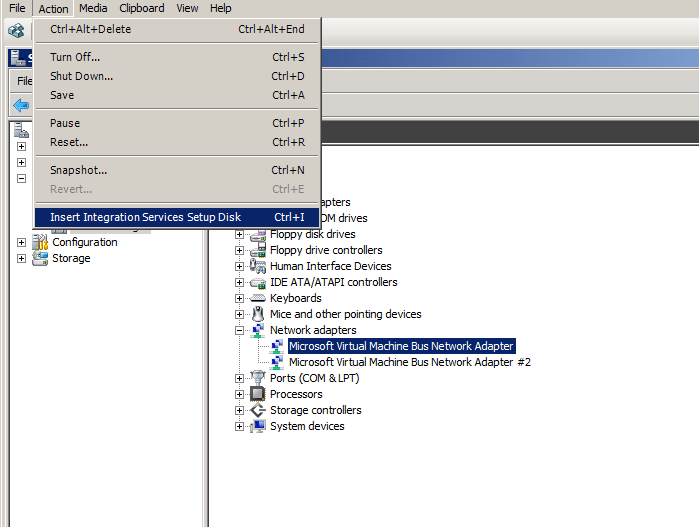
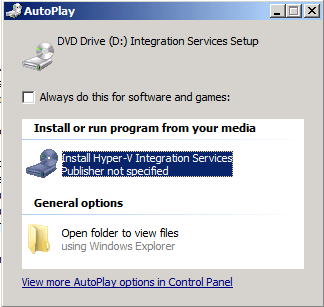
You can do this using Hyper-V Manager through selecting “Insert Integration Services Setup Disk”  and running the setup, this will require a reboot.

Click to start the upgrade process.

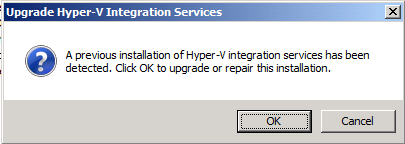
It will ask to upgrade or repair the previous version:

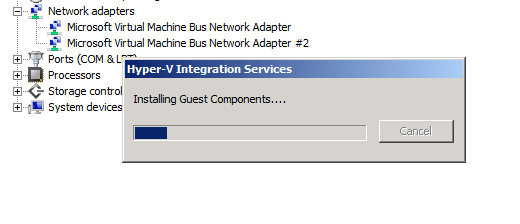
Work in progress:

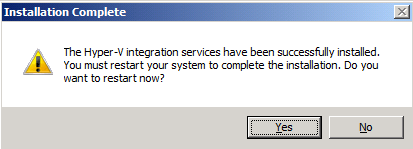
Done and asking for a reboot:

SCVMM2008R2 can also be used, here you shut down the guest before updating the virtual guest services as it’s called in SCVMM2008R2. It can be annoying that the nomenclature differs. The good thing here is that you can upgrade multiple guest using VMM2008R2. Hans Vredevoort did a blog post on this here: http://www.hyper-v.nu/blogs/hans/?tag=windows-server-2008-r2-sp1.  After the upgrade you can see that the version of the Integration Components  for Windows 2088 R2 SP1 is  6.1.7601.17514: